Changelog

What changed in Stoic Browser

Every release, newest first. The app updates itself, so this is also what you already have.

1.1.0

Imported passwords fill in, and StoicSoft bundle keys

Passwords you imported from another browser now fill in on their sites, with a right-click Fill Saved Login menu to pick another login, and Settings › License & Updates accepts the keys sold with StoicSoft bundles. On macOS, menus open right away and typing in web pages is no longer auto-capitalized.
New

  • Saved logins fill in automatically. When a page has a login form, Stoic Browser fills the saved login for that exact site, including forms that appear after the page loads. It prefers the login you last used there, the same one your old browser picked when you imported it.
  • Right-click a page to choose another login: the menu lists the site's saved logins as "Fill Saved Login", and the one you pick becomes the default for that site. Pages already open pick up logins as soon as an import finishes.
  • StoicSoft bundle keys work in Stoic Browser. A key from a StoicSoft bundle starts with SS- and goes in the same key field; it turns on Pro here and in every other app in the bundle. Lemon Squeezy keys work as before.
  • Settings → License & Updates names the bundle your key comes with, such as "StoicSoft Complete", and a new StoicSoft card shows the bundles that include Stoic Browser, the discount on your next StoicSoft app, the other apps your key already covers, a way to add devices, and a link to the StoicSoft app.

Improved

  • On macOS, menus and popovers such as the "…" menu open right away instead of waiting behind the page.

Fixed

  • On macOS, text you type into web pages is no longer auto-capitalized.
1.0.0

The new Stoic Browser: smaller, faster and signed in to Google

Stoic Browser 1.0 is rebuilt on the browser engine your system already ships, WebKit on macOS and WebView2 on Windows, so Google sign-in works, the installer is 11 MB on Windows and 28 MB on macOS, and your workspaces, automations, chats and settings carry over.

New

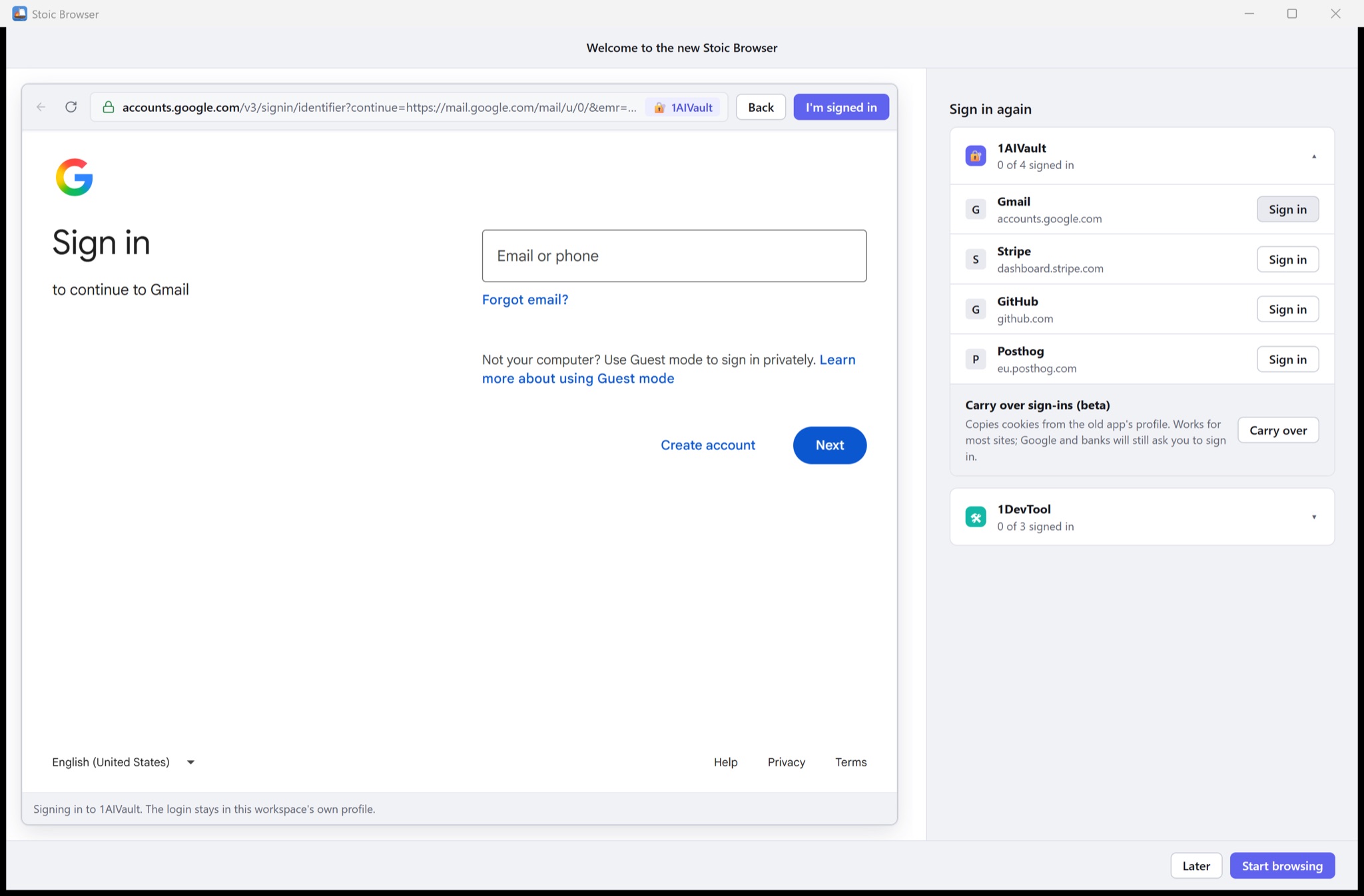
  • Google sign-in works. Gmail, Calendar, Analytics, Search Console and every "Sign in with Google" button now open normally instead of stopping at "This browser or app may not be secure".
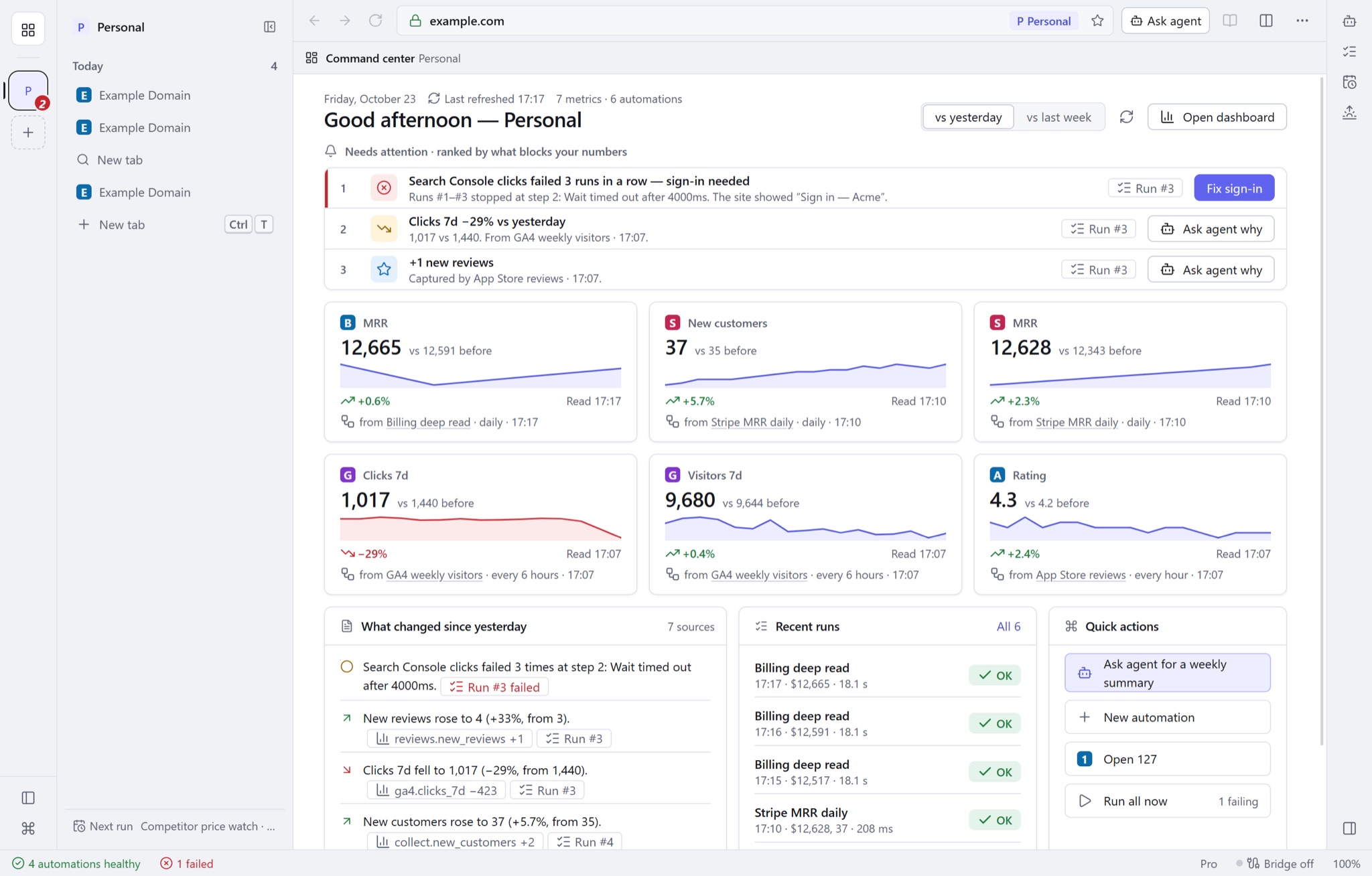
  • A refreshed interface across the shell, onboarding, command center, automations, agent chat and settings.
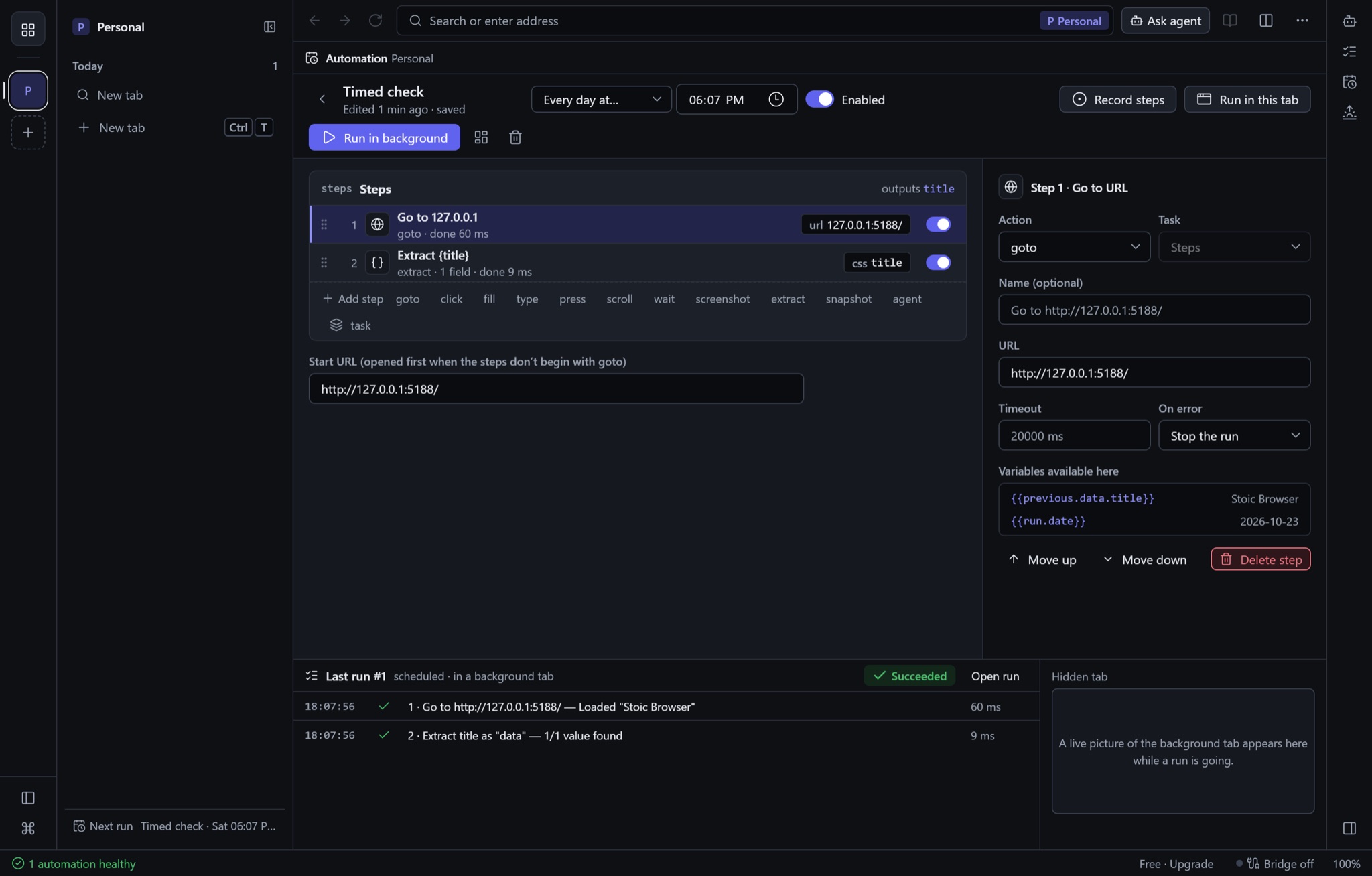
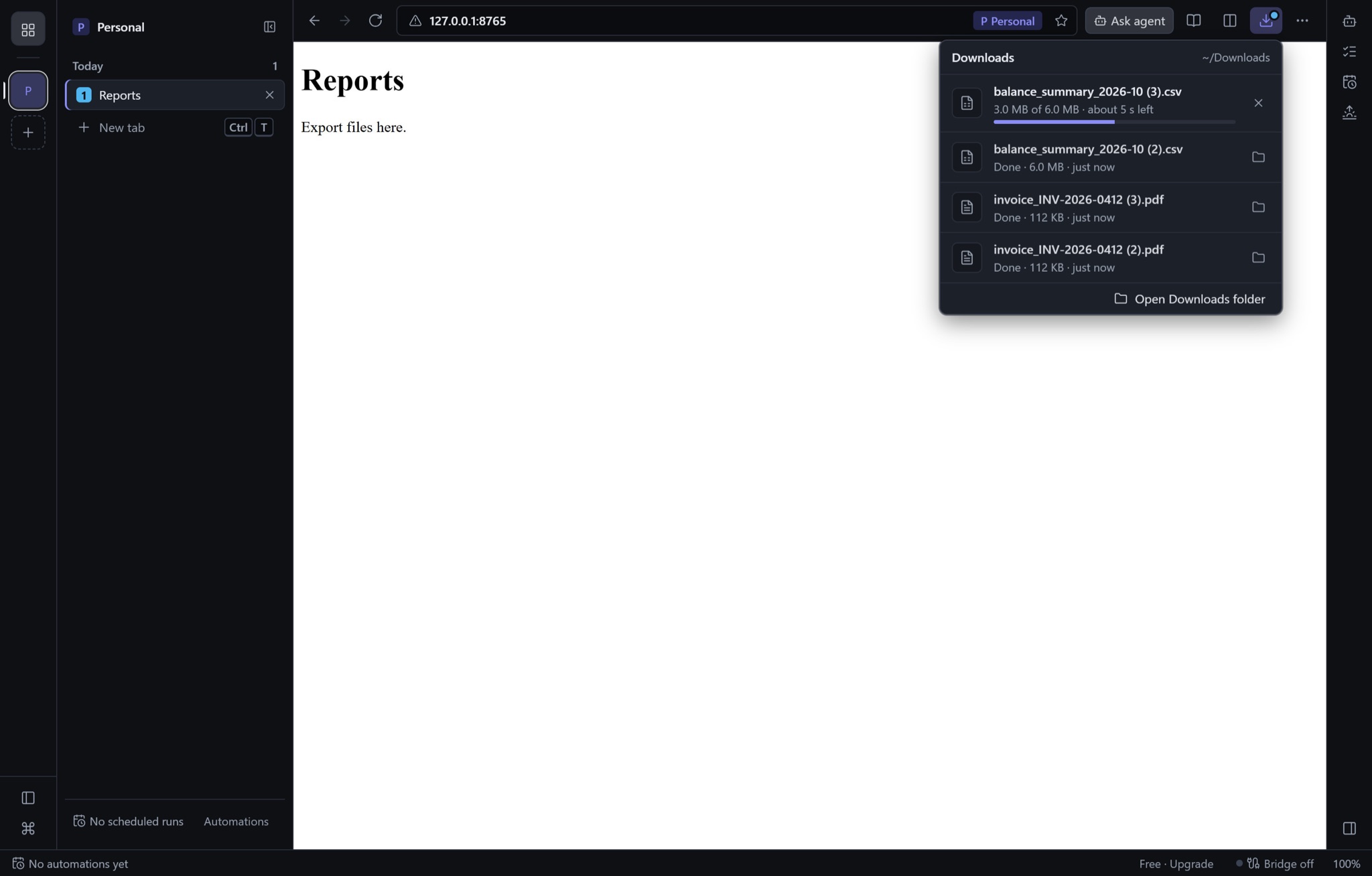
  • New: a downloads list with progress, a clear page for sites that could not load, automations at a fixed time of day (every day or on weekdays), and pause and extract modes in the recorder.

Improved

  • The installer is 11 MB on Windows and 28 MB on macOS, down from 122 MB and about 140 MB, and the app shares its browser engine with the system, so it uses less disk space and memory.
  • Your data carries over in place. On first launch the app finds your existing profile, backs up the database and keeps your workspaces, tabs, layouts, bookmarks, history, automations and runs, metrics, chats, prompts, memories, knowledge indexes, MCP connections and settings.
  • Website sign-ins do not carry over, because the engine is new. A "Sign in once" checklist lists each workspace's pinned sites so you can sign back in to each one in a few clicks.
  • Saved passwords and tokens now live in the macOS Keychain or the Windows Credential Manager.
  • MCP clients that already use Stoic Browser (Claude Code, Codex, Cursor, Claude Desktop) keep working with their existing configuration.
  • Web pages get no access to the app at all. Only Stoic Browser's own interface can talk to it, which matters in a browser that hands pages to AI agents.
  • macOS: one download for Apple silicon and Intel Macs. It needs macOS 14 Sonoma or later.
  • Windows: a per-user installer and an MSI. WebView2 is installed automatically if it is missing.
  • Linux is not available in this release yet. Linux users can keep using Stoic Browser 0.7.2.
The Welcome to the new Stoic Browser window with Google's sign-in page for a workspace and its Sign in again listThe command center with a Needs attention list, metric cards with their sources and recent automation runsAn automation set to run every day at a fixed time, with its steps and a successful background runThe Downloads list with a file in progress, finished files and a button to open the Downloads folder
0.7.2

Chromium 152, a hardened app and steadier split view

Stoic Browser 0.7.2 moves every page to the Chromium 152 engine, hardens the app and its update and crawl components, needs macOS 13 or later on a Mac, and fixes split view, blank or black pages and chats that stopped.

Improved

  • Pages now load in Chromium 152, up from Chromium 130. That brings about 18 months of browser engine security fixes to every site you open in Stoic Browser, along with the newer web platform features those sites expect.
  • On macOS, Stoic Browser now needs macOS 13 Ventura or later. Macs on an older version stay on 0.6.0 and are not offered this update.
  • Stoic Browser no longer accepts the debugging switches and Node.js options that other programs could use to run their code inside it, and on macOS and Windows it checks that its own app files are unchanged before it runs them.
  • Source crawls, store bundles and the app's other background requests no longer accept Brotli-compressed answers from servers, which closes a Node.js security flaw (CVE-2026-111497). They use gzip or deflate instead, so they work as before.
  • Source crawls and the updater now use patched versions of the libraries they rely on. That fixes known flaws that crafted pages or data could use to slow down or crash them.

Fixed

  • Split view no longer shows one tab in two panes, which left one of them blank. Selecting a tab that another pane already shows, or moving a tab into a pane, swaps the two panes instead.
  • Closing tabs in split view no longer fills the empty panes with copies of the same tab. When too few tabs are left for every pane, the layout falls back to fewer panes.
  • Fixed typing an address in a pane that showed a start page, which could load it over another tab's page.
  • Menus and popovers over a page, such as address suggestions, the tab menu and ⋯ Page tools, no longer leave a blank panel where the page was. The page stays in view behind the menu while it is open.
  • Fixed a page from a tab you had left staying on screen behind other panes and covering menus.
  • Fixed pages that stayed black after you came back from another app or restored the window. A shown page whose process crashed now reloads by itself.
  • On Windows, pages no longer come back black after another window has covered Stoic Browser.
  • Copy link on a page that failed to load copies the page's address instead of the error page's.
  • Switching to another view or making a page full screen no longer stops a running agent or drops a temporary chat.
  • Starting a temporary chat no longer makes later chats temporary. Opening the chat rail always resumes your saved chat, and a temporary chat applies only to the one you started.
  • Collapsible sections in chat replies now open as sections when their title sits on its own line or contains < or >.
0.6.0

Jev runs browser tasks from chat, and tabs can sit beside the page

Stoic Browser 0.6.0 adds Jev, a TypeSafe decision model that runs browser tasks from chat, a side tab column with a full right-click menu, and page tools in each pane in place of the top toolbar.

New

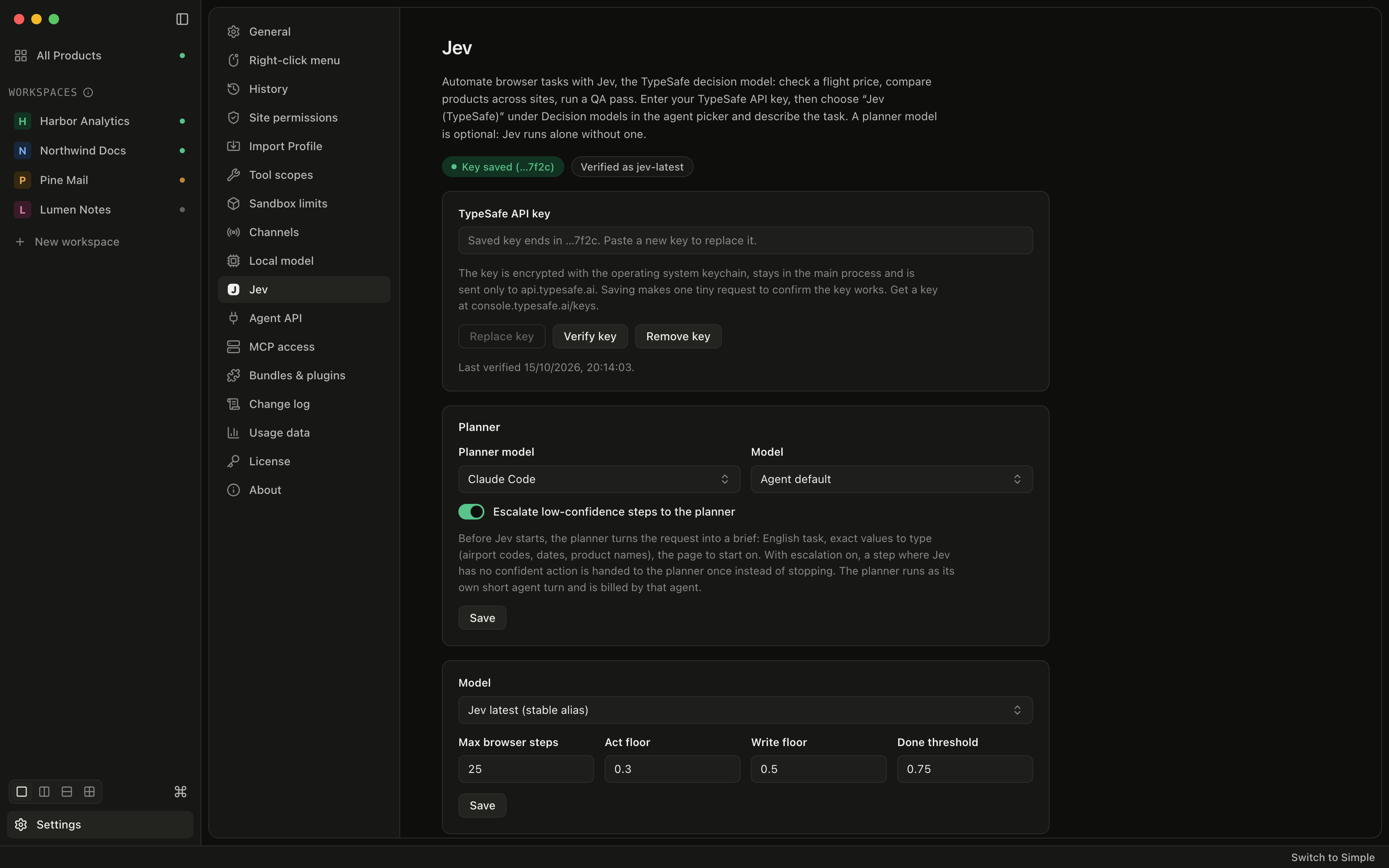
  • Jev (TypeSafe) is a new agent in chat. Paste a TypeSafe API key in Settings → Jev, choose Jev under Decision in the agent picker, and describe a task: check a flight price, compare a product on two sites, or run a QA pass on a sign-up flow. Jev works in the current workspace's pages, so your logins carry over, and Tool scopes and Sandbox limits apply to it like any agent.
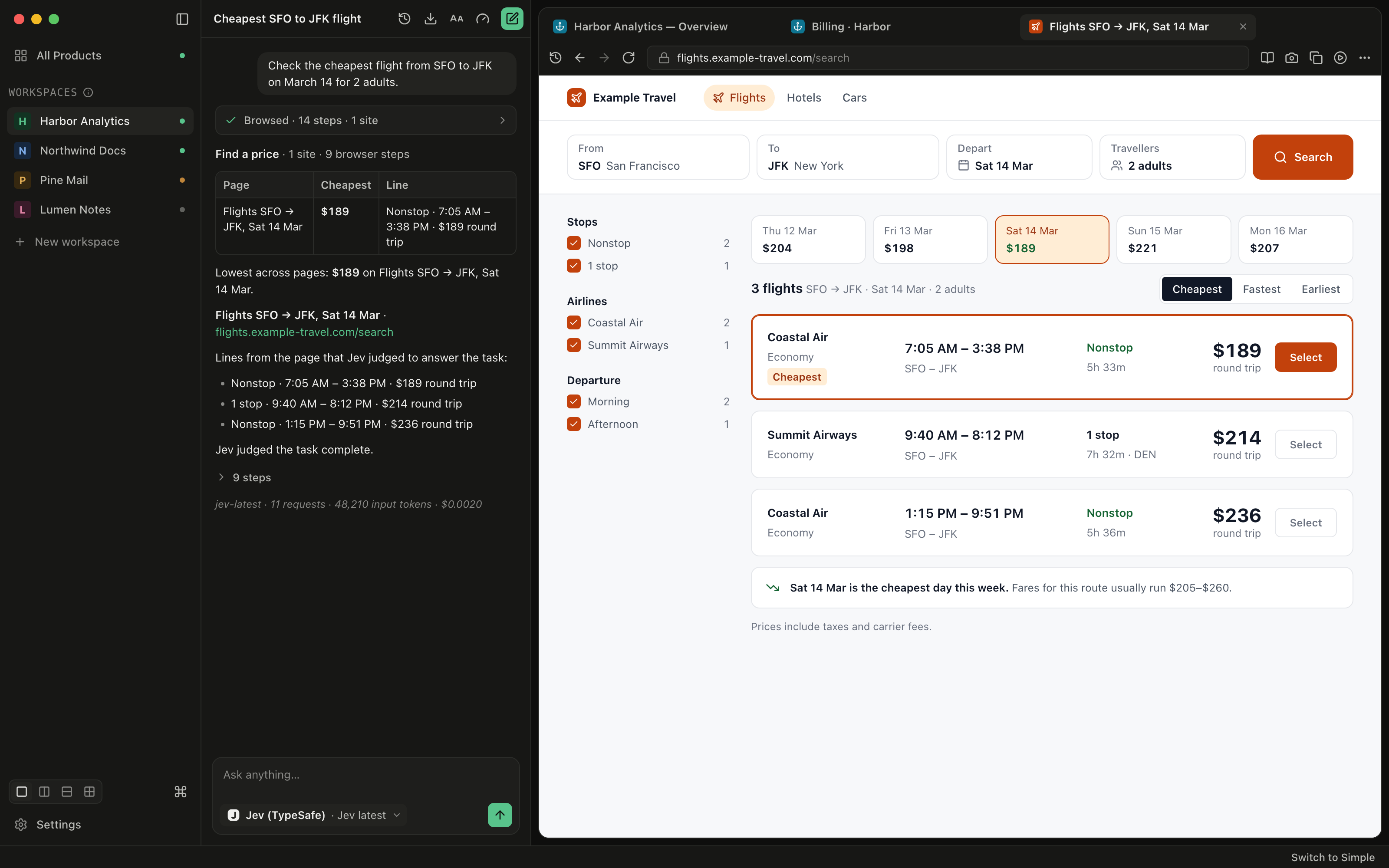
  • Jev's reply quotes only lines from the pages it visited, puts the cheapest results first for price tasks, and ends with a collapsible list of its steps and the cost of the run. When the final page does not show what you asked for, the reply says so instead of claiming an answer.
  • Settings → Jev saves the key in your system keychain and checks that it works, and sets the model, the most browser steps a run may take and how sure Jev must be before it clicks, types or stops.
  • An optional planner in Settings → Jev uses one of your coding CLIs to turn the request into exact values (airport codes, dates, product names) and a page to start on, and can take over a step where Jev is unsure.
  • Automation agent steps, Telegram and the Agent API can use Jev once a key is saved. In chat, "continue" or "try again" picks up the last Jev task on the page it left open.
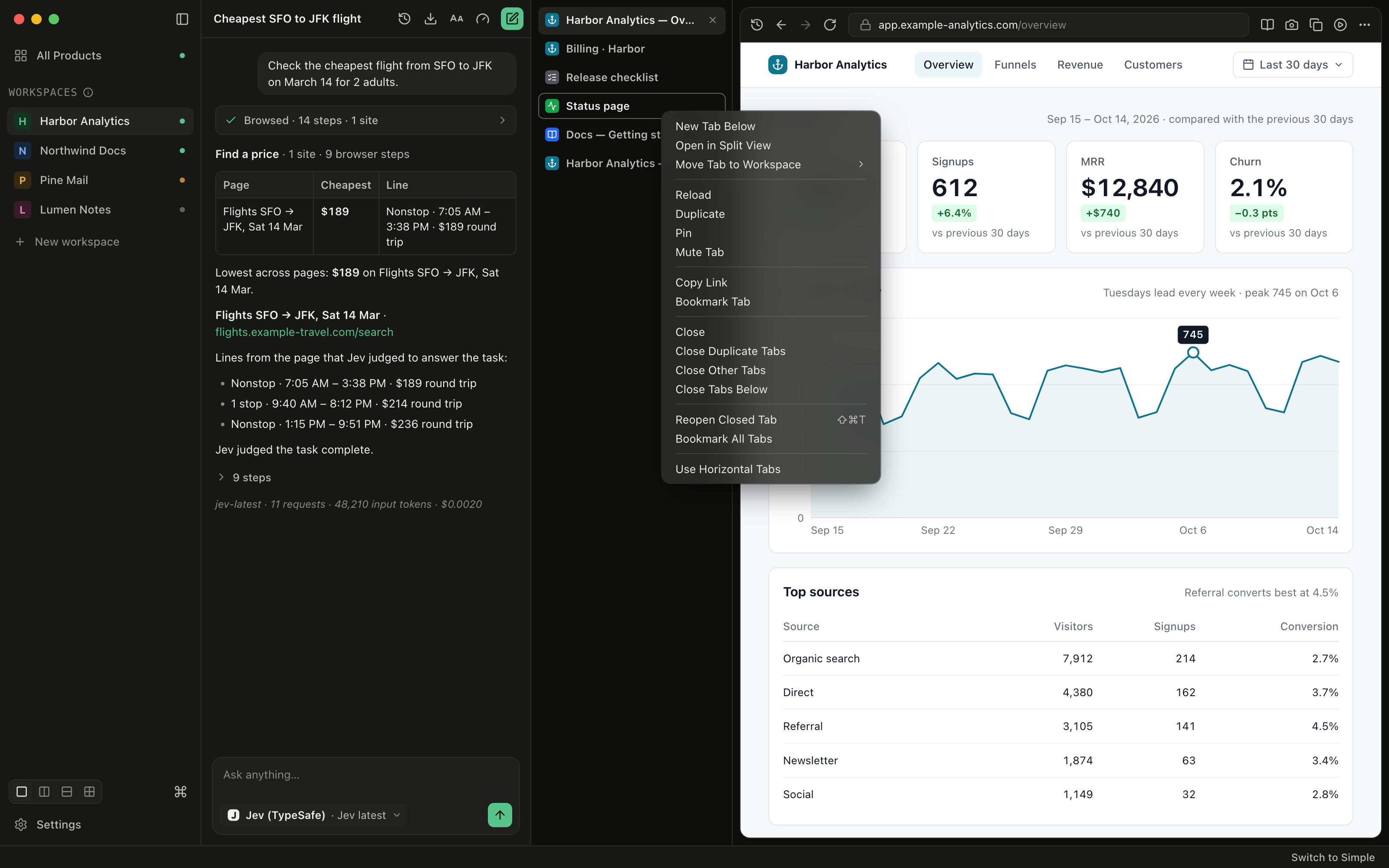
  • Tabs can sit in a column beside the page. Choose Top or Side under Tabs in Settings → General (Settings → Appearance in the Simple interface), or from a tab's right-click menu, and drag the column's edge to resize it.
  • Right-clicking a tab opens a menu to open a new tab next to it, open it in split view, move it to another workspace, reload, duplicate, pin, mute, copy its link or bookmark it. It also closes duplicate tabs, other tabs or the tabs to the right, reopens a closed tab and bookmarks all tabs. Pinned tabs stay open when several tabs close at once.
  • Cmd/Ctrl+Shift+T reopens the last closed tab where it was.

Improved

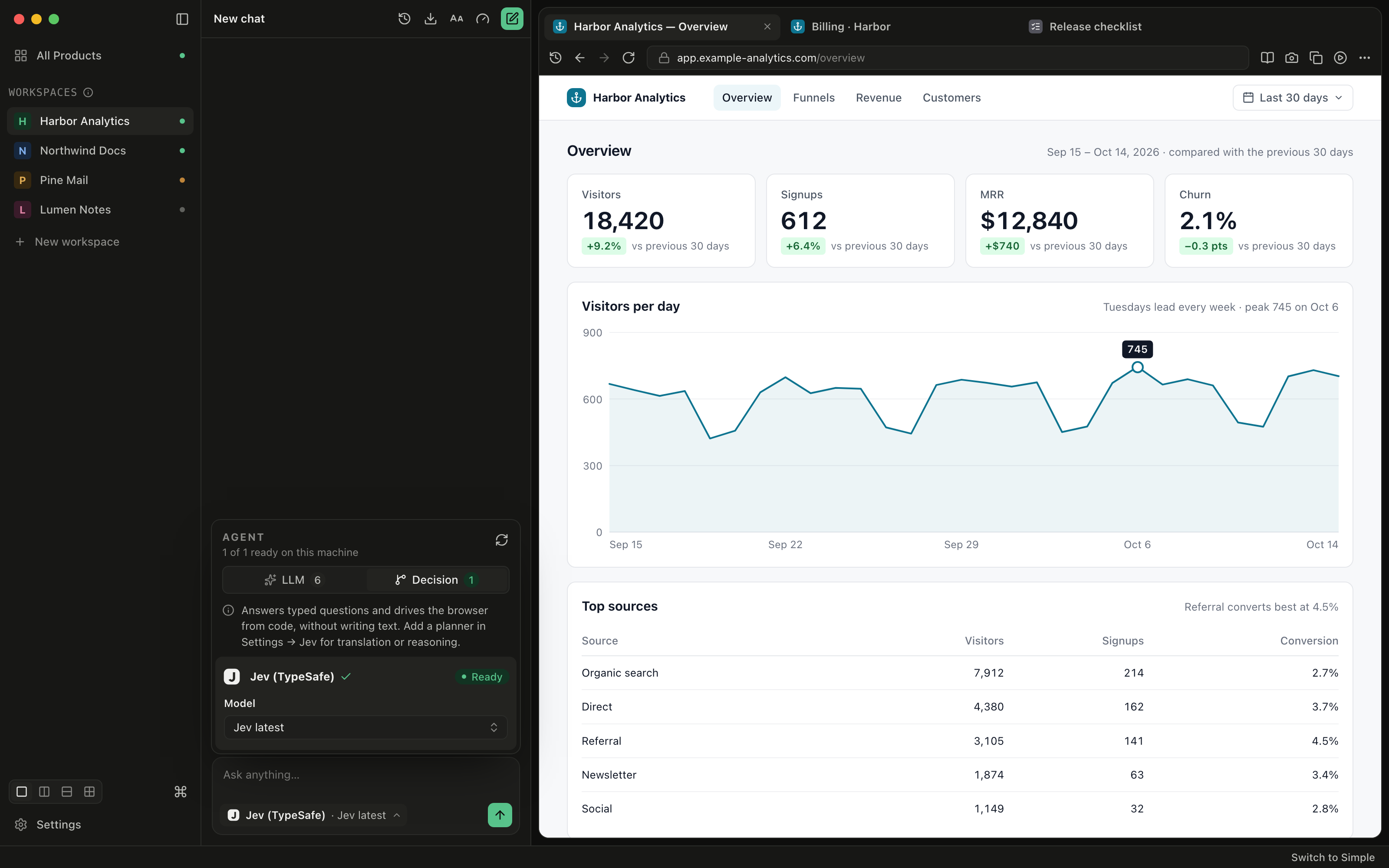
  • The agent picker splits agents into LLM and Decision tabs, each showing how many are ready on this machine.
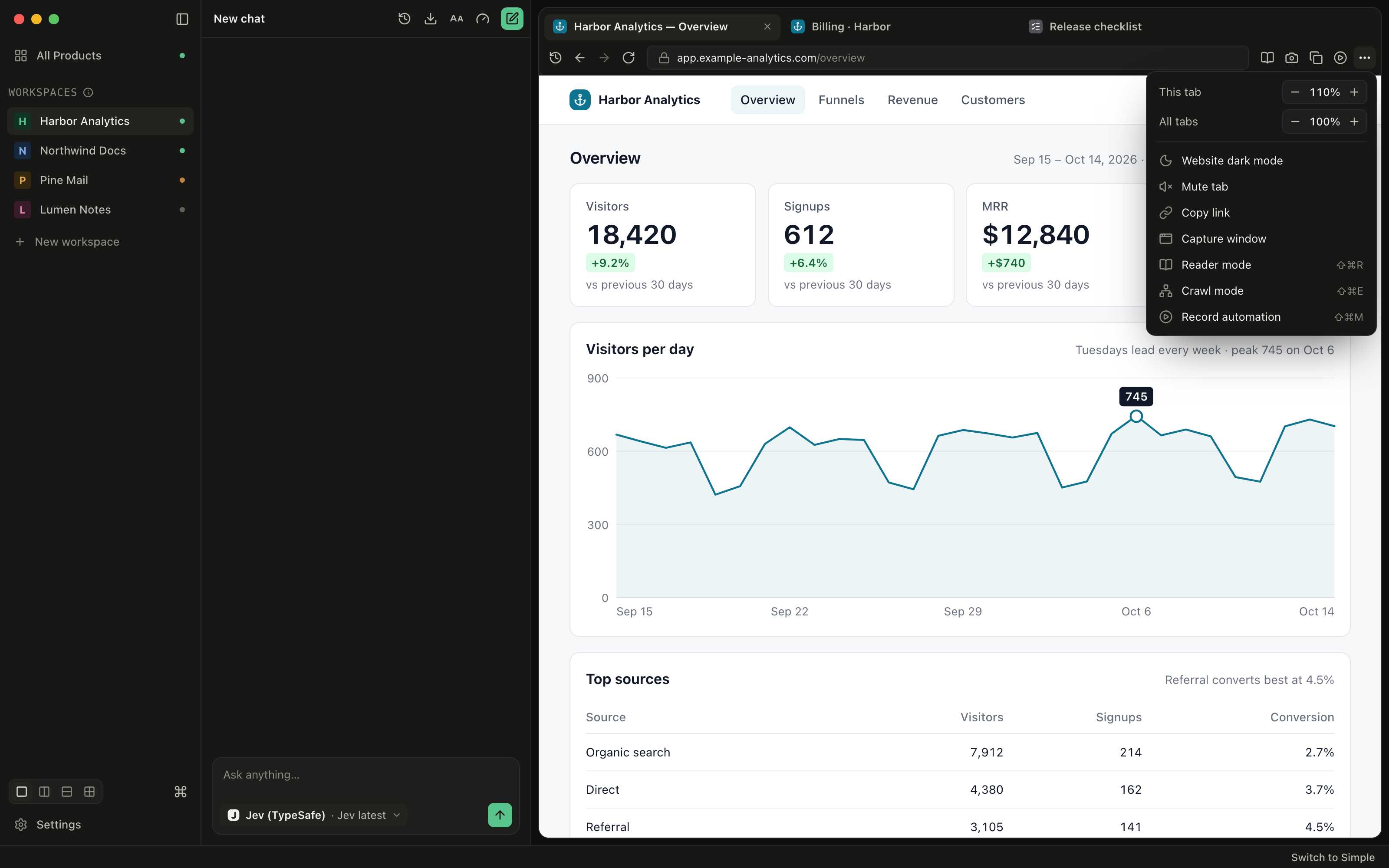
  • The Full interface no longer has a top toolbar, so the page gets more room. Each pane's bar holds Record automation and a ⋯ Page tools menu with zoom for this tab and all tabs, website dark mode, mute, copy link, capture, Reader, crawl mode and record. The layout switcher and the command palette moved to the sidebar footer, and on macOS the window buttons sit in the sidebar header.
  • Export chat offers Copy to clipboard next to Save export… for JSON and Markdown.
  • Chat replies now show collapsible sections and underscore italics.
Jev's chat reply for a cheapest-flight task: a table of the page, price and line it found, quoted lines, the step count and the run's cost, beside the flight results pageThe agent picker with LLM and Decision tabs, the Decision tab showing Jev (TypeSafe) ready with the Jev latest model selectedSettings → Jev with a saved and verified TypeSafe API key, the planner set to Claude Code with escalation on, and max steps and confidence floorsTabs in a column beside the page, with a tab's right-click menu open showing split view, move to workspace, close duplicate tabs, reopen closed tab and Use Horizontal TabsThe ⋯ page tools menu on a pane's bar with zoom for this tab and all tabs, website dark mode, mute, copy link, capture, Reader, Crawl mode and Record automation
0.5.0

Sites ask before they use your camera, microphone or screen

Web pages now ask before they use your location, camera, microphone, screen, notifications and other sensitive features, screen sharing works in video calls, and each space keeps its own answers in Settings → Site permissions.

New

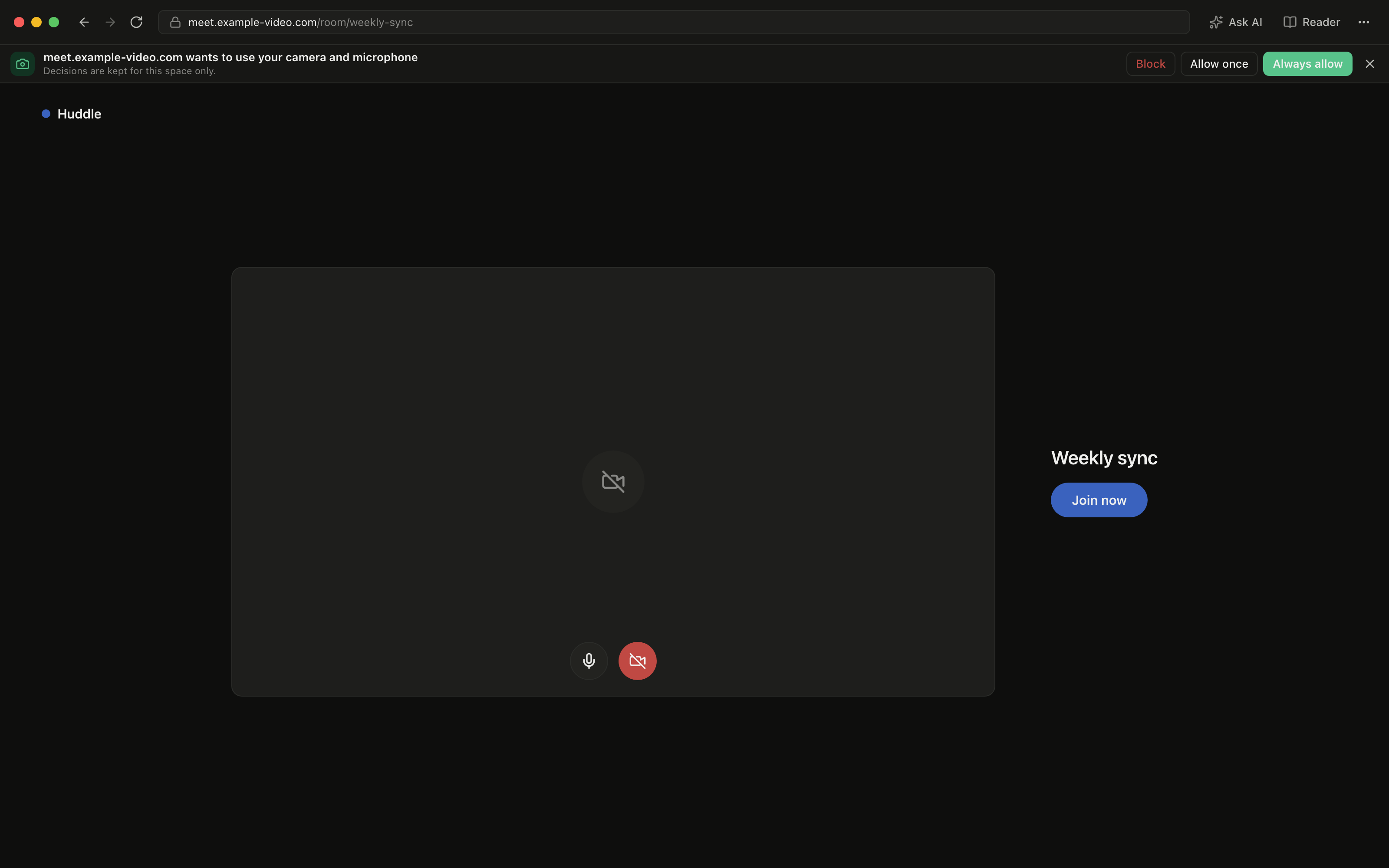
  • When a page asks for your location, camera, microphone, notifications, clipboard, MIDI devices, mouse and keyboard lock, another app on your computer or your files, a bar above that page names the site and what it wants, with Block, Allow once and Always allow. Esc or × says no to this request only.
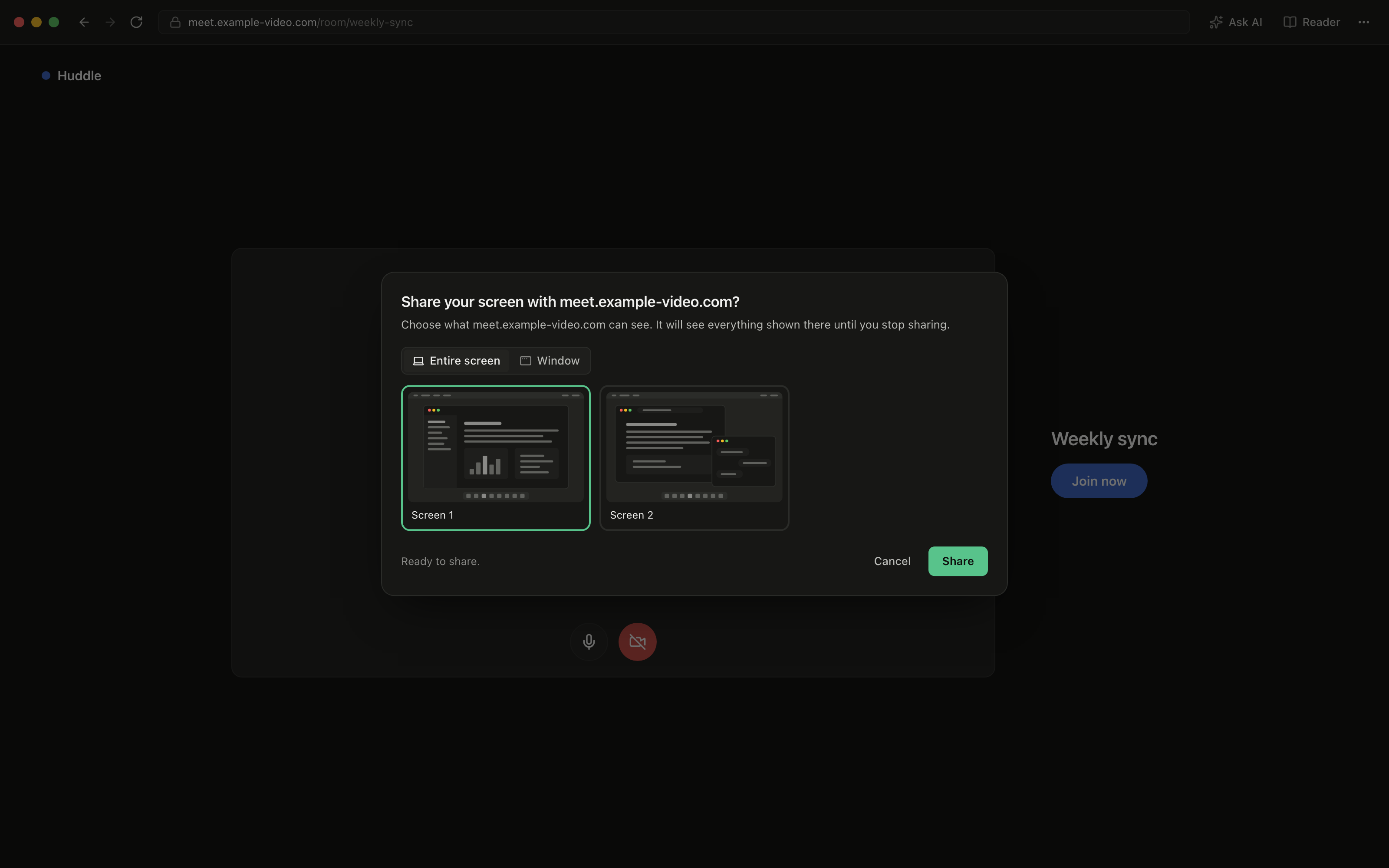
  • Screen sharing opens a picker of your screens and windows, so video calls and meeting sites can share your screen. On Windows, a site that asks for audio also gets your computer's sound.
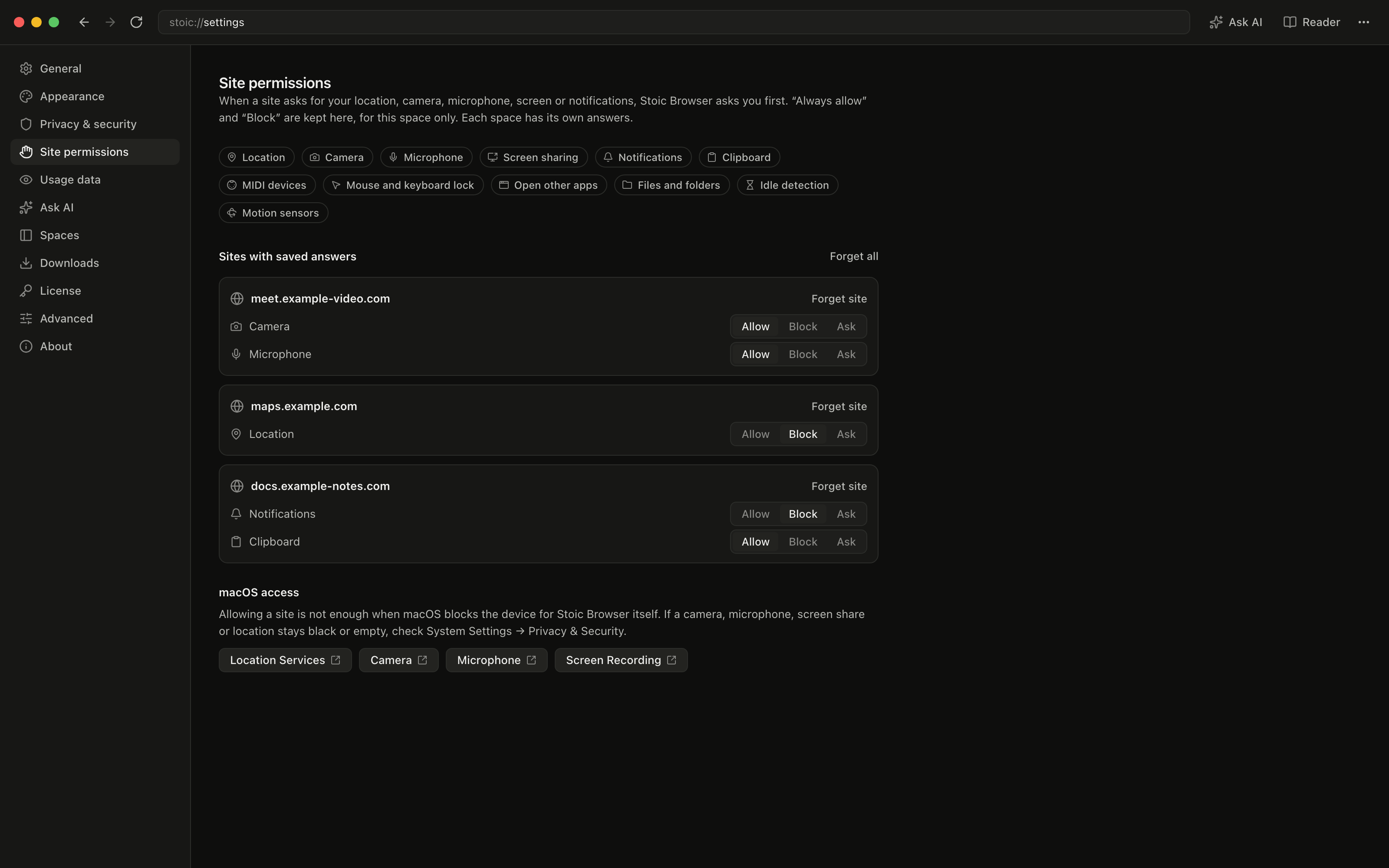
  • Settings → Site permissions lists every site you allowed or blocked in the current space. Each answer can be switched between Allow, Block and Ask, or forgotten for one site or for all of them. Each space keeps its own answers.
  • On macOS, when the system itself blocks the camera, microphone or screen recording for Stoic Browser, a notice above the page says so, with a button that opens the right Privacy & Security pane in System Settings.

Improved

  • Scheduled automations and MCP access never stop on a permission prompt: they only use the answers you already saved.

Fixed

  • Fixed Cursor Agent runs that failed with "a value is required for '--single <PROMPT>'" when Grok Build was also installed. Chat could start Grok Build's own agent program in place of Cursor Agent.
  • On Windows, Cursor Agent now receives your prompt exactly as typed. Quotes and backslashes, as in code, JSON or file paths, were changed on the way to the CLI.
  • Cursor Agent's tool calls in chat show the tool's name and whether it worked, instead of a generic "tool" that never finished, and its cached tokens now count in usage.
  • On Windows, the card for a coding CLI that is not installed no longer says "on this Mac", and it shows the Windows install command.
A bar above a video-call page asking to use the camera and microphone, with Block, Allow once and Always allowThe Share your screen picker with Entire screen and Window tabs, two screens to choose from and a Share buttonSettings → Site permissions listing three sites with Allow, Block and Ask for each saved answer, plus macOS access buttons
0.4.0

Release notes before you update, and npm coding agents in chat on Windows

A new-version dialog shows the release notes before you update, updates live in Settings → About, and coding CLIs installed with npm now run in chat on Windows.

New

  • A new-version dialog opens once per release, the first time a newer version is offered. It shows the release notes under What is new and offers Download, Skip this version and Later. It shows the download progress, then Restart and install once the update is ready.

Improved

  • The update pill in the top bar or status bar reopens the dialog. When the update is already downloaded, the pill still restarts into it.
  • Software updates moved into Settings → About, which shows the running version, the update status and the update preferences together. In the Simple interface, About is its own section instead of sitting under Advanced.
  • On Windows, chat also looks for CLIs in the npm global folder, WinGet's links and the other folders Windows installers use, so a CLI missing from the app's PATH is still found. Grok Build is found in its own install folder on every platform, and Antigravity in its Windows install folder.
  • On Windows, Import Profile says when a browser that is still open keeps its data locked, and asks you to quit it and try again, instead of showing a raw file error.

Fixed

  • On Windows, coding CLIs installed with npm now start in chat, and a prompt of several lines reaches the CLI whole instead of only its first line.
  • On Windows, Delete all chat data no longer stops with a CLI process error after an agent run that did not finish cleanly.
0.3.0

Model pickers that know what each coding CLI offers your account

The agent picker reads the models your account can use from nine more coding CLIs, remembers a model and effort per agent, and turns silent failures into clear error cards.

New

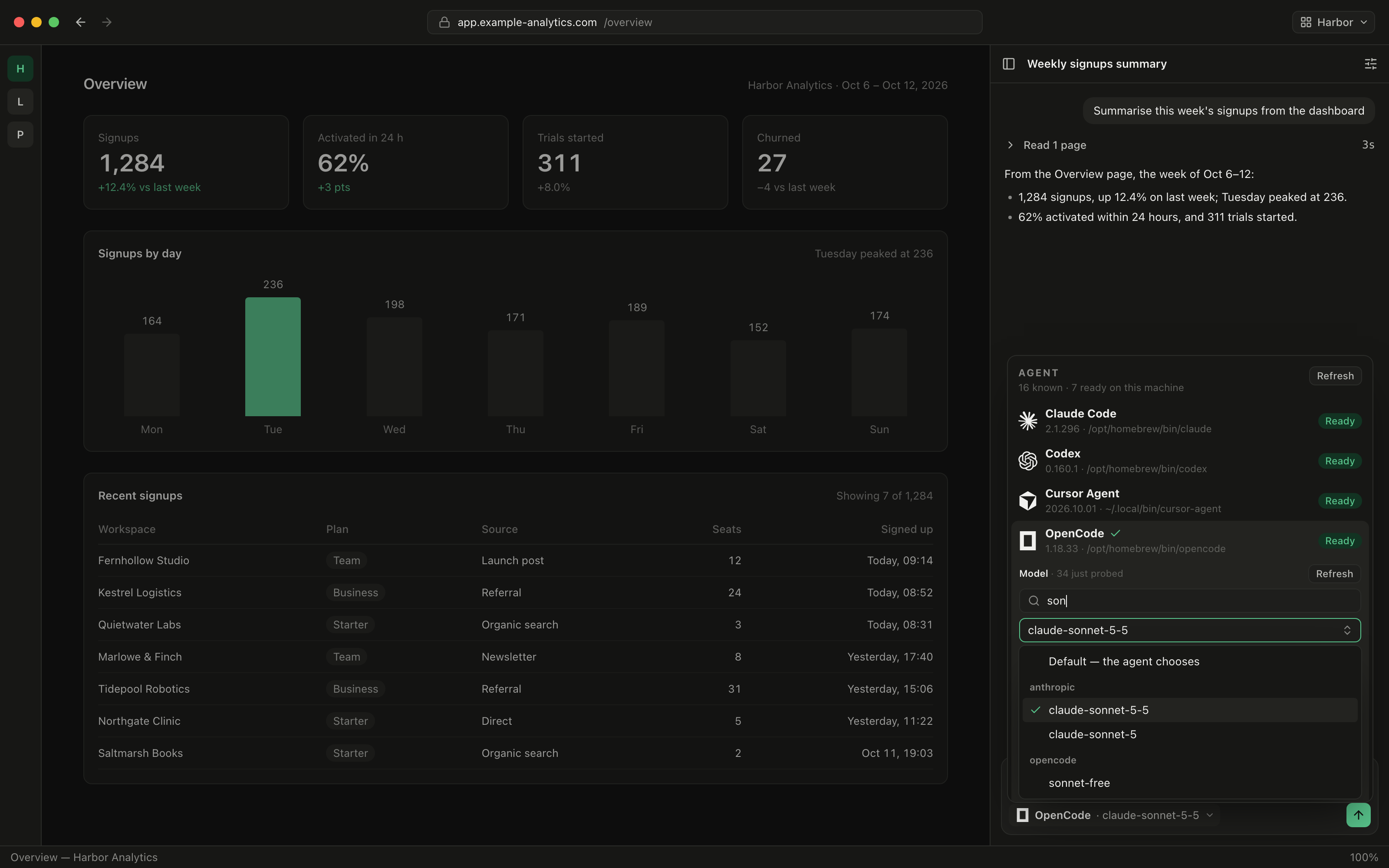
  • The agent picker lists the models your account can use, read from Cursor Agent, Antigravity, Grok Build, Pi, Oh My Pi, Kiro CLI, Devin, Kimi Code and Qwen Code, as it already did for Codex and OpenCode. Lists are kept for a day so the picker opens quickly, and Refresh asks the CLI again.
  • Effort follows the model. Codex shows each model's own reasoning levels and its default, and Claude Code, OpenCode, Grok Build, Pi, Oh My Pi, Kiro CLI, Hermes Agent and Aider get an Effort setting.
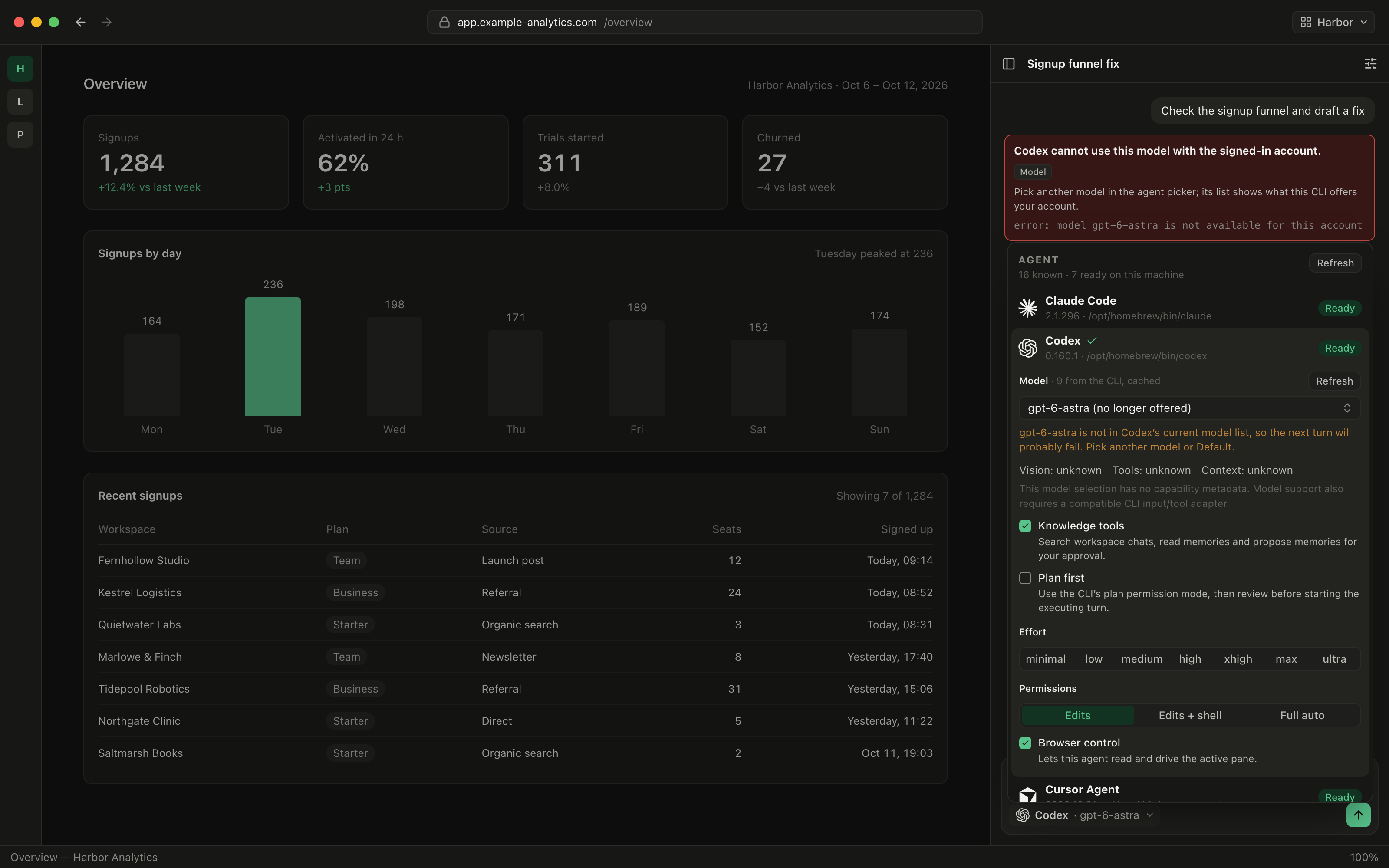
  • Each agent remembers its own model and effort, so switching CLIs no longer hands one CLI's model to another. A saved model the CLI no longer offers is flagged in the picker before the next turn fails.
  • Claude Code adds Fable to its model list.

Improved

  • Long model lists get a filter box and are grouped by provider. The picker says whether a list was just read, cached or built in, and shows why when a CLI could not list its models. Hermes Agent, which cannot list models, takes a typed provider/model id with an example.
  • A model your account cannot use now shows a "cannot use this model" card with a Model badge. When no model was picked, the card says the CLI's own default model is the cause.
  • Expired logins, wrong API keys, usage limits, and the errors Qwen Code and Hermes Agent print as replies now show as error cards instead of empty answers. When OpenCode keeps retrying a failing model, a status line says so instead of the run looking stuck. A failure is reported once, not twice.
  • Kiro CLI runs under every permission preset and can use the browser tools. Codex and Cursor Agent no longer refuse browser tool calls in chat. Antigravity and Kimi Code no longer offer browser tools, which they could not receive.
  • Each agent shows its own logo in place of a two-letter tile. When Pi, Oh My Pi or Hermes Agent is not installed, the picker shows its install command.

Fixed

  • Fixed runs that failed or stalled: resumed Codex chats, Grok Build, Pi, Oh My Pi, Devin, Cline, Qwen Code, and Kimi Code under Full auto. Antigravity now works in the chat's folder.
  • Reader shows Vietnamese and other accented text correctly: accents no longer break away from their letters, including in pages opened in Reader before this update.
Agent picker in the chat rail with OpenCode selected, the model list filtered to 'son' and grouped by provider, claude-sonnet-5-5 checkedCodex model picker flagging a saved gpt-6-astra model as no longer offered, under a red card saying Codex cannot use this model with the signed-in account
0.2.0

One menu for chat tools, chats that name themselves, and a look inside profiles before you import

The chat rail gathers its tools in one menu, names chats for you, and every dropdown in the app gets a cleaner look.

New

  • A Chat tools menu (the sliders button beside the chat title) holds Inspect context, Trim context, Deep research and Compare models, each with a one-line explanation. Each tool opens as a sheet in place of the conversation.
  • Chats name themselves. After the first reply, a small model writes a short title, marked with a sparkle until you rename it. Regenerate title asks for a new one, and Auto-title chats in the same menu turns it off for a workspace.
  • Open a profile to see what is inside before importing it: bookmark folders, top sites and recent history, saved logins by site and username (never the passwords), cookies and site storage. Then choose what to bring over and which workspace receives it.

Improved

  • Chat history opens as a full-height drawer with All, Pinned and Archived views, chats grouped by date, a menu on each chat for rename, tags, folder, pin, archive and delete, and a Select mode to change many chats at once.
  • Settings → Import Profile lists every Chrome, Brave, Firefox and Safari profile on the computer with its bookmarks, history, passwords, cookies, storage and when it was last used. Search, filter by browser, hide empty profiles and sort by last used, name, size or browser.
  • Import warns when Chrome or Brave is still open, so cookies and history copy cleanly, and says when Safari needs Full Disk Access.
  • Every dropdown, from the workspace switcher to settings, chat filters and automation steps, now opens a menu drawn in the app's own style, with a check on the current choice, grouped options and full keyboard support.
  • Update notes in Settings → Software updates show formatted text, links and screenshots instead of raw text. Links open in your default browser.
  • The macOS disk image opens on a designed install window.

Fixed

  • The Free vs Pro table no longer lists unlimited daily digests as a Pro feature. The Free limit of 3 a day is unchanged.
0.1.1

Pro activates on every platform, and Windows builds for x64 PCs

A fix release: Pro keys now activate on Windows, Linux and Intel Macs, the Intel Mac app opens its database again, and the Windows app is built for x64 PCs.

Improved

  • Every release build now checks its packaged license configuration and native modules, and fails if either is wrong for its platform.

Fixed

  • Pro license keys now activate on Windows, Linux and Intel Macs. The 0.1.0 builds for those platforms were packaged without the license product configuration and refused every key; only the Apple Silicon build could activate.
  • The Intel Mac app opens its database again. The 0.1.0 Intel Mac build shipped a Linux copy of its SQLite module.
  • The Windows installer and portable app are built for x64 PCs. The 0.1.0 Windows build contained only an ARM64 app.
0.1.0

Workspaces, a daily digest, automations and an agent chat

Stoic Browser is a command center browser for founders who run several products at once.

New

  • Workspaces with isolated login sessions, tabs, pinned dashboards and split panes.
  • A metrics dashboard and daily digest that watch the dashboards you already use.
  • A browser automation harness with recorded steps, variables and schedules.
  • An agent chat that drives local coding CLIs (Claude Code, Codex, OpenCode and others) with browser tools over MCP.
  • MCP access, so external clients can use Stoic Browser as a browser tool server.
  • Automatic updates from GitHub Releases on macOS, Windows and Linux.