Blog· 7 min read
Ask AI, rebuilt around the conversation
Stoic Browser 1.7.1 gives Ask AI one header and one message box. A ring next to Send shows how full the context is, and the rest moved into two menus.
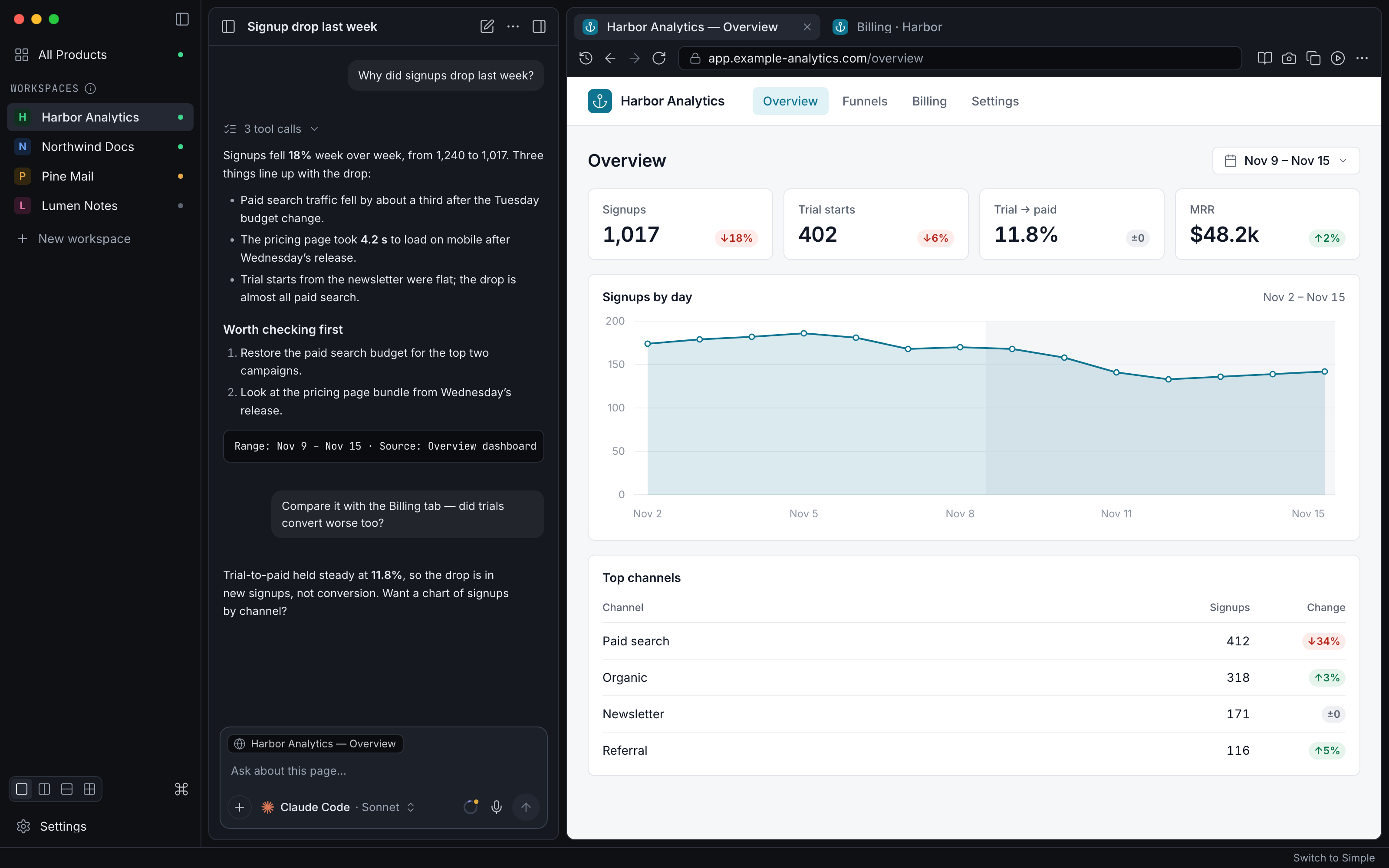
You open Ask AI to ask one thing about the page in front of you. Before you can type, you read past a bar with a name on it, a row of seven icons, a title with "15 actions logged" under it, chips for the agent and its sandbox, a token meter, a sentence about the context window, Summarize and Compact buttons, and a row of tools under the message box. Each of those did something useful. Together they took a third of a narrow side panel and made a simple question feel like operating a machine.
The conversation was the part you came for, and it had the least room.
What changed
In Stoic Browser 1.7.1, Ask AI is built around two things: one header row at the top and one message box at the bottom. Everything between them is the conversation. The tools you reach for less often are still there, in two menus and a small ring next to Send, instead of on screen all the time. You can now ask about a page without reading past a toolbar first, and still find every setting when you need it.
The header holds five things: Chats, the chat's title, New chat, a … menu, and Close in the Simple interface (in the Full interface the same button collapses the panel to the icon strip). That is the whole header. The same panel is the chat rail in the Full interface, so what follows applies to both.
How it works in practice
Start from the page you are on
A new chat opens on "What can I help with?" and a few starters for the page you are looking at. In the Simple interface they are Summarize this page, Compare with my other tabs and Fill in a form for me. When the chat works on a folder instead of a page, the starters change to match, such as Explain this folder and Find what needs attention.
Above the text you type, a small chip shows the page the agent will read, by its title. When you attach files or pick a persona, they join that row as chips too, each with a button to remove it. So before you press Send, you can see what the agent is getting: this page, these two files, this persona. The placeholder says "Ask about this page…", which is usually the point.
Replies read as plain text and your messages sit in soft bubbles, closer together than before. When the agent uses browser tools, a finished group of calls folds into one quiet line, such as "3 tool calls", which you can open when you want to see what it did.
Everything you add to a message is behind +
The row under the text has five controls: +, the agent and model, the context ring, Dictate and Send. The + button holds everything you might add to a message:
- Attach files and Screenshot of this page
- Prompts, your saved prompt library
- Record automation, so the agent does your next task once and saves it as an automation you can run again
- Deep research, for a report where every claim cites a saved page
- Voice mode, to talk to the agent and hear the reply
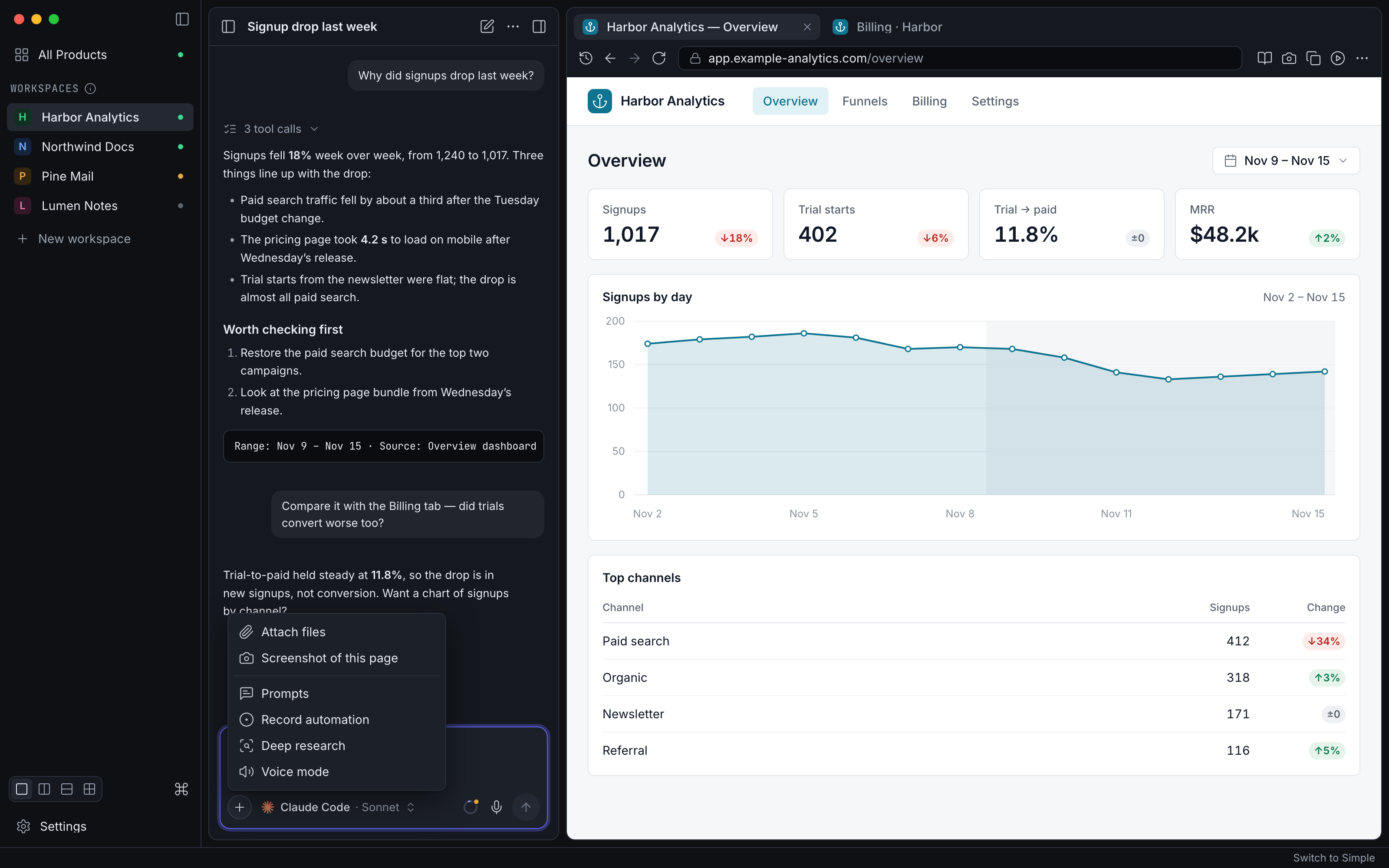
Typing / in the message box still lists the commands (/new, /export, /compact) and your saved prompts, so if you already work from the keyboard nothing changes for you.
Keep an eye on the context window without a meter in the way
The token bar and the context sentence that sat above the message box are gone. In their place is a small ring next to Send. It fills as the chat uses up the model's context window, stays in the accent colour while there is room, turns amber at 60% and red at 80%.
Click it and you get the whole picture in one place:
- how much of the window the last request used, for example "4.6% of context used, 46.4k / 1M tokens"
- what this chat has spent so far: tokens in, out and cached, and how many tool calls it made
- the actions that act on it: Compact session (Claude Code, once there is a reply), Summarize into a new chat, Inspect context to see exactly what the agent receives next turn, and Trim context to drop dead-end tool results
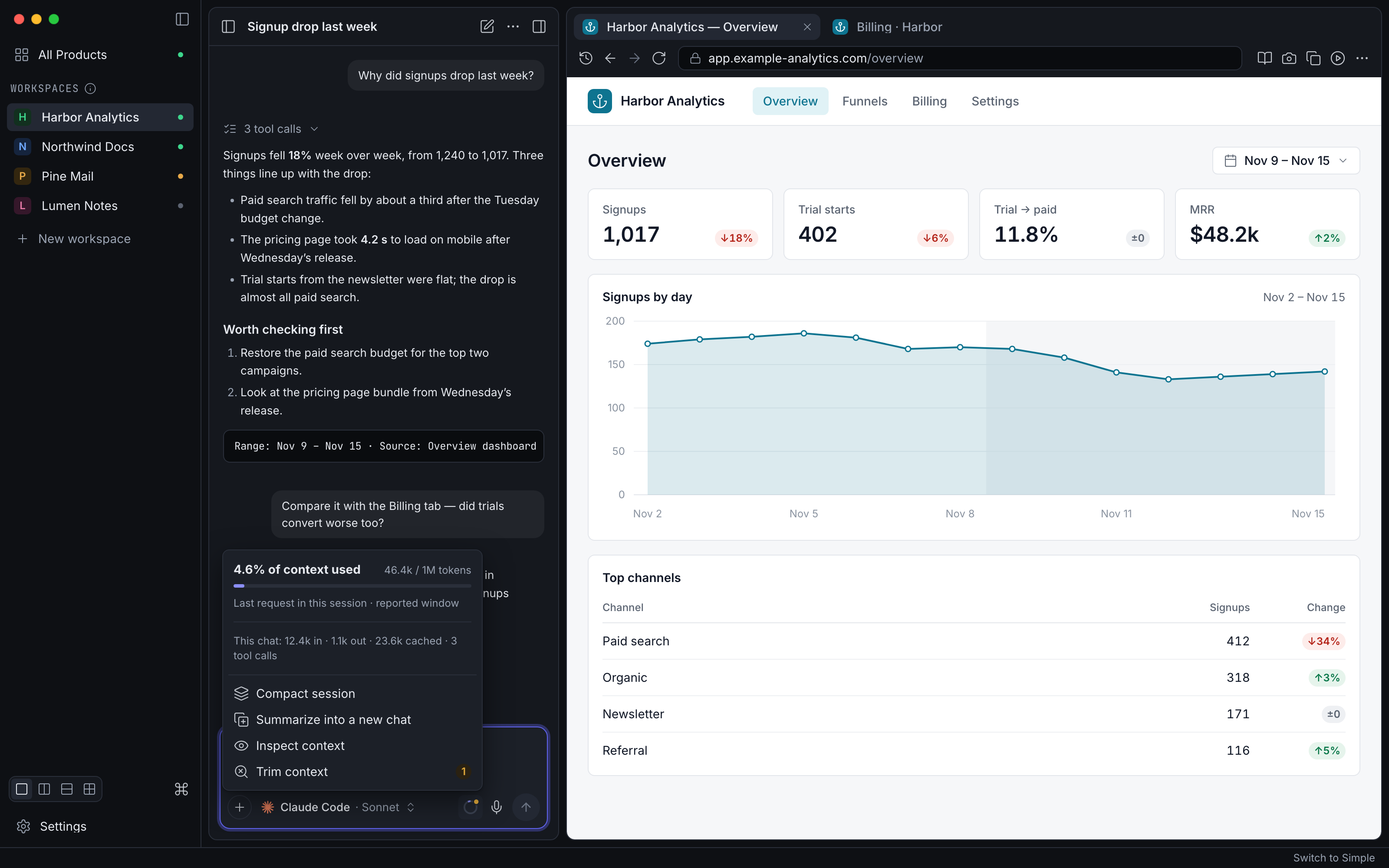
When some tool results are worth trimming, a small dot appears on the ring and Trim context shows how many. Near the limit, the popover tells you so and suggests compacting or starting a fresh session. The token counts that used to sit under every reply live here too, so the transcript stays a transcript.
One menu for this chat and for the app
The … menu in the header holds the settings, in three groups so you can tell what each one affects:
- This chat: Temporary chat (not saved to history), Regenerate title and Export chat.
- Customize: Persona, Knowledge, MCP servers, Schedules and the Working folder the agent works in.
- App: Usage & budgets, Text size, Auto-title chats, Import chats, and Privacy & data.
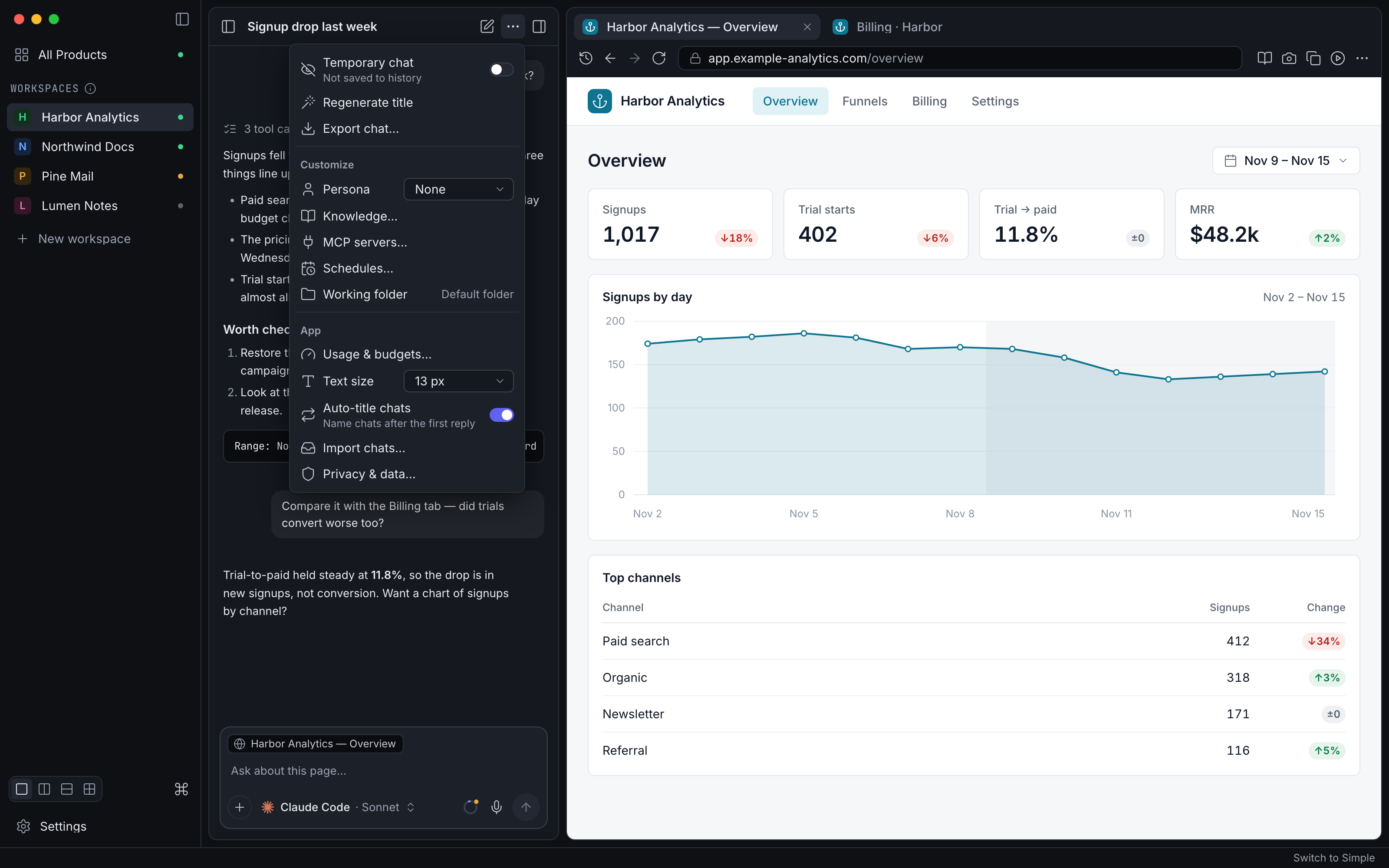
Opening one of them (Knowledge, MCP servers, Usage & budgets) shows it in place of the conversation, with a way back. You no longer have panels stacking up above the message box.
Find a past chat
Chats in the header opens the list, grouped under Pinned, Today, Yesterday, Previous 7 days and Earlier, with search at the top. Each chat has a … menu with Rename, Pin, Archive and Delete, and Archived chats is a link at the bottom. The keyboard shortcuts still work: Cmd/Ctrl+Shift+N starts a new chat, Cmd/Ctrl+Shift+F searches your chats.
Where things moved
If you used the old panel, this is where each piece went:
| Before | In 1.7.1 |
|---|---|
| Seven icons in the header | Chats, New chat and the … menu |
| Attach, Screenshot, Prompts, Record automation and Voice under the message box | The + menu |
| Deep research in the header's tools menu | The + menu |
| Persona, Knowledge, MCP servers and Schedules under the message box | … menu → Customize |
| Inspect context and Trim context in the header's tools menu | The context ring |
| Token meter, context sentence, Summarize and Compact buttons | The context ring next to Send |
| Token counts under each reply | The context ring and Usage & budgets |
| Text size in the header, Import and Privacy under the chats list | … menu → App |
| Knowledge tools and Plan first in the agent picker | Agent picker → More options |
A few things were removed rather than moved. Compare models is gone. The chats list no longer has folders, tags, view tabs or bulk select; chats you had filed in folders still appear in the list, under their date. The agent and sandbox chips and the "actions logged" link are gone from the header.
Who benefits most
- People who use Ask AI in the Simple interface. You open it, ask about the page, and close it. The panel now looks like that job.
- People who run long agent sessions. The ring tells you how full the context is at a glance, and compacting or trimming is one click from it instead of a strip of controls you have to watch.
- People on smaller screens. A narrow side panel spends its height on the conversation instead of on chrome.
Try it
Stoic Browser offers 1.7.1 as an update in the app, or you can download it from stoicbrowser.com/download. On a Mac, the disk image now shows "Drag Stoic Browser to Applications" and reminds you to open the app from Applications, so it can keep itself up to date. Then open Ask AI on a page you are reading and ask your question. The panel stays out of the way, and the answers get the room.