Blog· 6 min read
Proxies that ask for a password now work, one per profile
Each browser profile can now use a SOCKS5 or HTTP proxy that asks for a user name and password. Paste your provider's line, test it before you save, and WebRTC stays behind it too.
You run more than one product, and some of them need to look like they come from somewhere else. A client account that should always sign in from the same country. A support identity that shouldn't share an address with your founder account. A storefront you want to check the way its customers abroad see it. The usual answer is a proxy, one per identity, bought from a proxy service or taken from your VPN's manual setup page.
Until now that answer stopped halfway in Stoic Browser. A browser profile could send its traffic through a proxy, but only through one that let anybody connect. Almost every proxy you can buy asks for a user name and password, so the setting that should have kept your identities apart sat empty, or you ran a separate tool on your computer just to pass the login along.
What changed
In Stoic Browser 1.4, a profile's proxy can have a user name and password. You can now give each identity its own paid proxy, check that it works before you save it, and rely on the profile's pages either going through that proxy or not loading at all.
How it works in practice
Paste the line your provider gives you
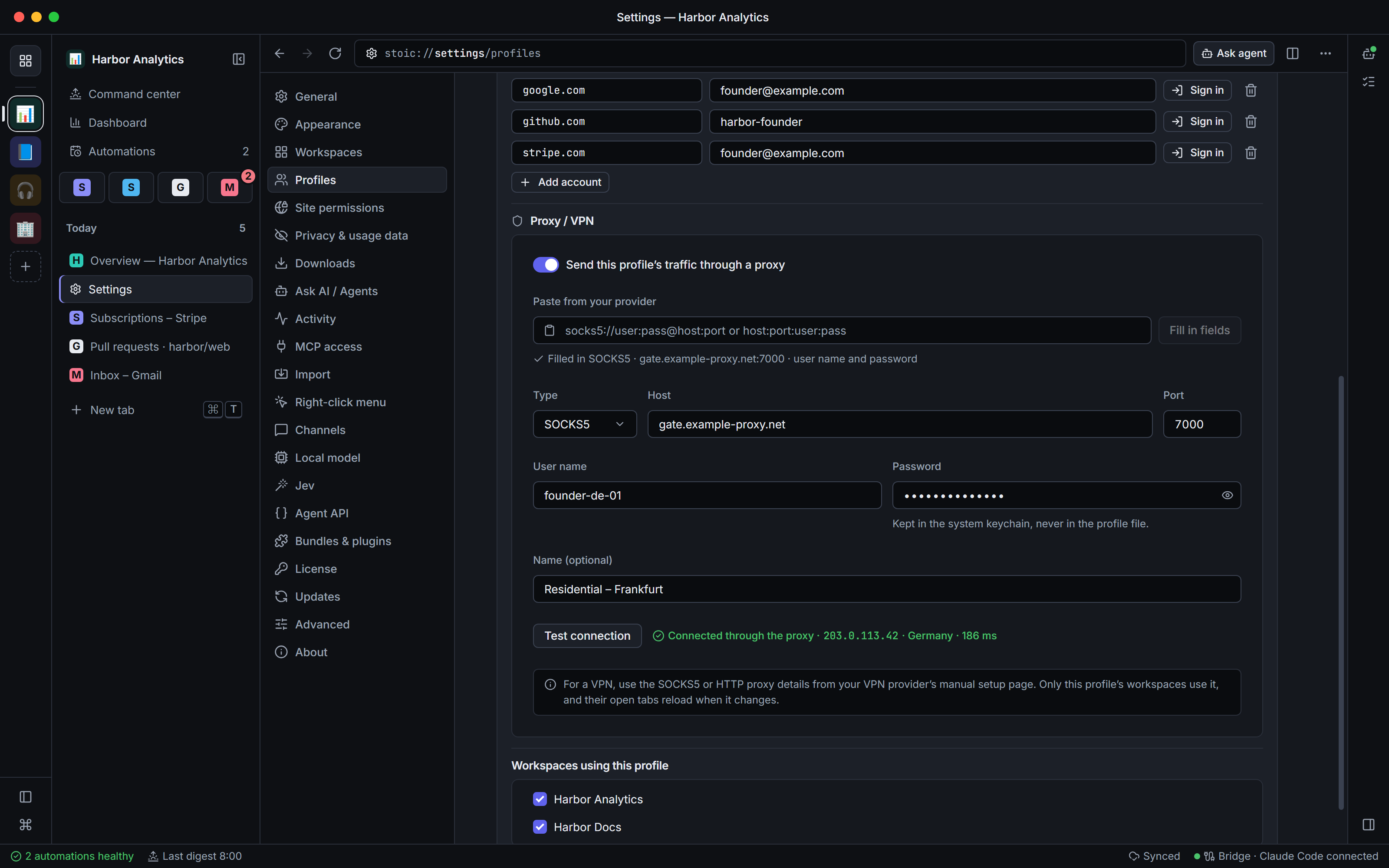
Open Settings → Profiles, pick a profile and scroll to Proxy / VPN. Turn on Send this profile's traffic through a proxy. Most providers show a proxy as one line on their setup page, so there is a field for exactly that: Paste from your provider. Paste a line like socks5://user:pass@host:port, host:port:user:pass or user:pass@host:port, and Stoic Browser fills in the type, host, port, user name and password for you. It clears the pasted line afterwards, so the password doesn't sit on screen.
If you'd rather type it, the fields are all there: Type (SOCKS5 or HTTP), Host, Port, User name and Password, plus an optional name such as "Residential – Frankfurt", so the profile list tells you at a glance which proxy each identity uses.
The password stays out of your profile
The password goes to the system keychain (Keychain on macOS, Credential Manager on Windows), never into the profile itself. After you save, the field only says Saved · type to replace. To change the password, type a new one. To drop it, press Remove password. The user name stays visible, because that is usually what tells you which account or location a proxy belongs to.
Test before you save
Test connection checks the proxy as it is typed, before you save anything. When it works, it shows the IP address and country that sites will see, and how long the connection took. When it doesn't, it tells you which problem you have: the proxy refused the user name or password, it couldn't be reached at that host and port, or it doesn't answer like the type you picked. Those are three different fixes, and you no longer have to guess which one you need.
No quiet fallback to your own connection
When you save, the open tabs in that profile's workspaces reload through the new connection. From then on, if the proxy refuses the login or stops answering, pages in that profile fail to load. They don't quietly open over your own connection instead. For an identity whose whole point is to come from somewhere else, a page that doesn't load is the safe outcome. A page that loads from your home address is not.
WebRTC stays behind the proxy
A proxy covers most of what a page does, but not all of it. WebRTC, the technology behind video calls in the browser, can reach the network on its own, and a page can use it to read your real IP address even while everything else goes through a proxy. Leak-test sites check exactly this.
In 1.4, a profile that uses a proxy keeps WebRTC behind it. Calls and other WebRTC connections only use relay servers over TCP or TLS, which go through the proxy, so a site can no longer read your real address that way. The trade-off is plain: a call on a site that has no such relay server won't connect in that profile. Profiles without a proxy work exactly as before.
Before vs After
| Before 1.4 | With 1.4 | |
|---|---|---|
| A proxy that asks for a user name and password | Not supported; you needed a separate tool on your computer | Type it into the profile, or paste your provider's line |
| Checking that a proxy works | Save, open a site, look up your IP address | Test connection shows the IP address, country and response time |
| A wrong password, host or proxy type | Found out by reading a browser error page | The test says which of the three is wrong, before you save |
| WebRTC in a profile with a proxy | Could show sites your real IP address | Stays behind the proxy |
Who benefits most
- Founders with a profile per product or market. Each identity keeps its own address, so a store you run for one country is always checked from that country.
- Agencies and freelancers signed in to client accounts. A client's profile can keep the same proxy every day, separate from your own accounts and from other clients.
- Anyone using a VPN's SOCKS5 or HTTP proxy instead of the VPN app. One profile goes through it while the rest of your computer, and your other profiles, don't.
Also in 1.4
On macOS, if you open Stoic Browser from its disk image, or straight from the folder you downloaded it to, macOS runs it from a read-only copy that can't install updates. Stoic Browser now offers to move itself to Applications, with Move to Applications, Not Now and Don't Ask Again, and Settings → Updates shows the same button for as long as it's needed.
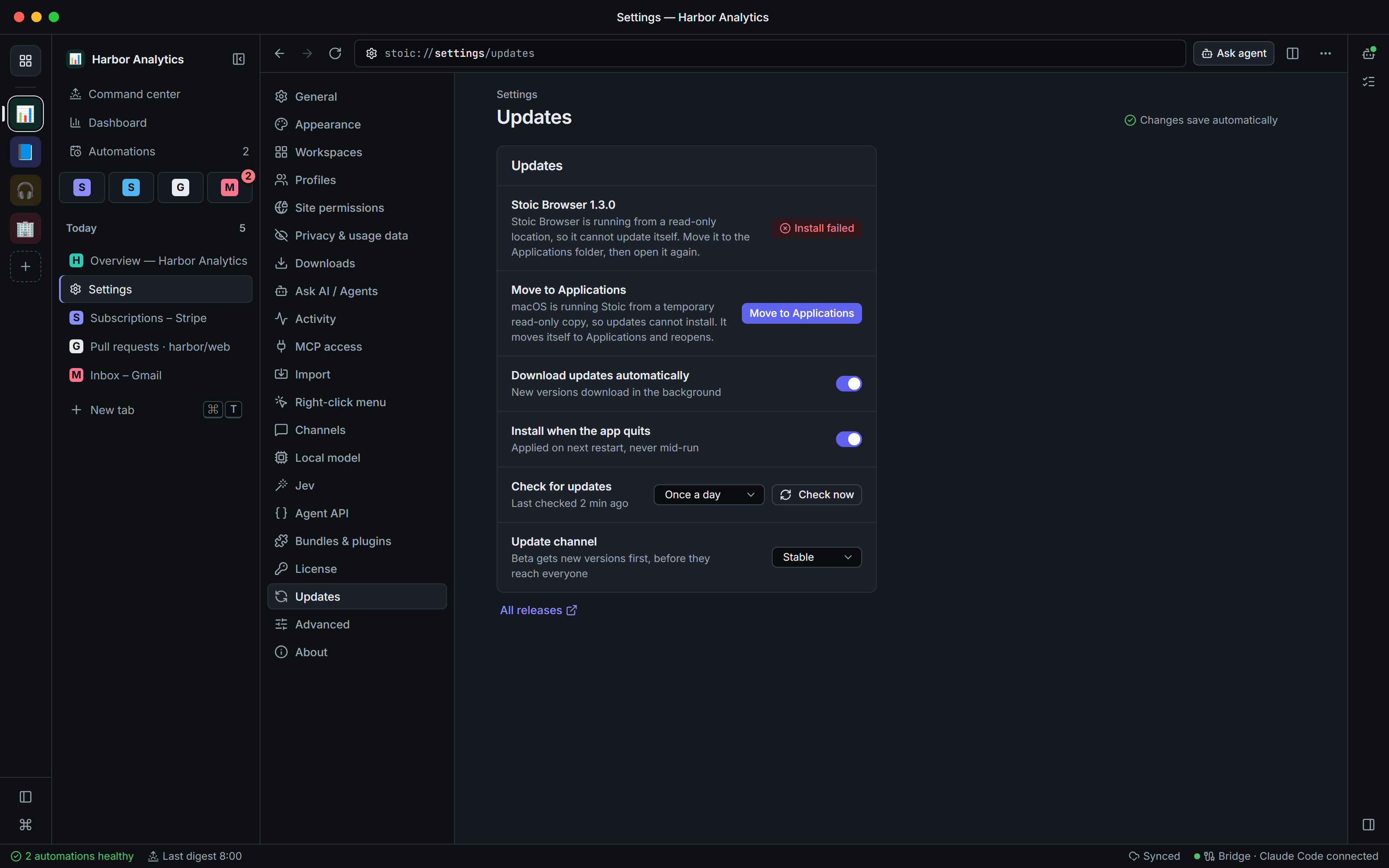
- Settings → Updates now says which step failed: Check failed, Download failed or Install failed.
- Buying Pro opens the StoicSoft store, and every license key, including keys bought before, is checked there.
- Outline icons across the app no longer turn into filled shapes when the Augment (Auggie) logo is on screen.
Try it
Update from inside the app, or download Stoic Browser 1.4 from stoicbrowser.com. Then open Settings → Profiles, paste your provider's line into the profile that needs it and press Test connection. A few seconds later you'll see the address that profile shows the world, and from then on every page it opens goes through it.