How do I automate repetitive browser tasks without writing code?
Updated 23 Nov 2026
The short answer
Record the task once with a tool that turns clicks into steps, then replay it. Chrome's DevTools Recorder and Power Automate on Windows do this for free. If the task needs your sign-ins and should run on a schedule, use a tool that runs it in a signed-in browser on a timer.
Your options
A recorder built into the browser
Chrome and Edge DevTools have a Recorder panel that captures clicks, typing and navigation as a replayable flow, and can export it as a script.
Best when Best when you run the task yourself, now and then, and only need it replayed while you watch.
A desktop automation app
Power Automate for Windows records actions in the browser and in desktop apps. Similar recorder apps exist for the Mac.
Best when Best when the chore crosses several desktop apps, not only web pages.
A cloud automation service
Cloud tools replay recorded browser steps on their servers, or connect web apps through their APIs without a browser at all.
Best when Best when the sites have APIs, or the task must run while your computer is off.
A browser that records and schedules
Some browsers record a task in a tab that is already signed in and replay it on a schedule in a hidden window.
Best when Best when the task lives behind your logins and should run every day without you.
Do it with Chrome's built-in Recorder
This works in Chrome and Edge with nothing to install.
Write the task down. List the pages, the clicks and the values you type. A task you can describe in five or six steps records cleanly; a long one is easier as two.
Open the Recorder. Open DevTools with Cmd+Option+I on a Mac or Ctrl+Shift+I on Windows, then choose More tools → Recorder.
Record the flow. Create a new recording, give it a name and start recording. Do the task in the page as usual, then end the recording.
Replay and fix. Press Replay to run it again. If a step fails because the page changed, edit that step's selector or delete it and record again.
Decide how it should repeat. The Recorder replays only while you have DevTools open. To run it on a timer, export it as a script and schedule that, or use a tool that schedules runs itself.
The same job in Stoic Browser
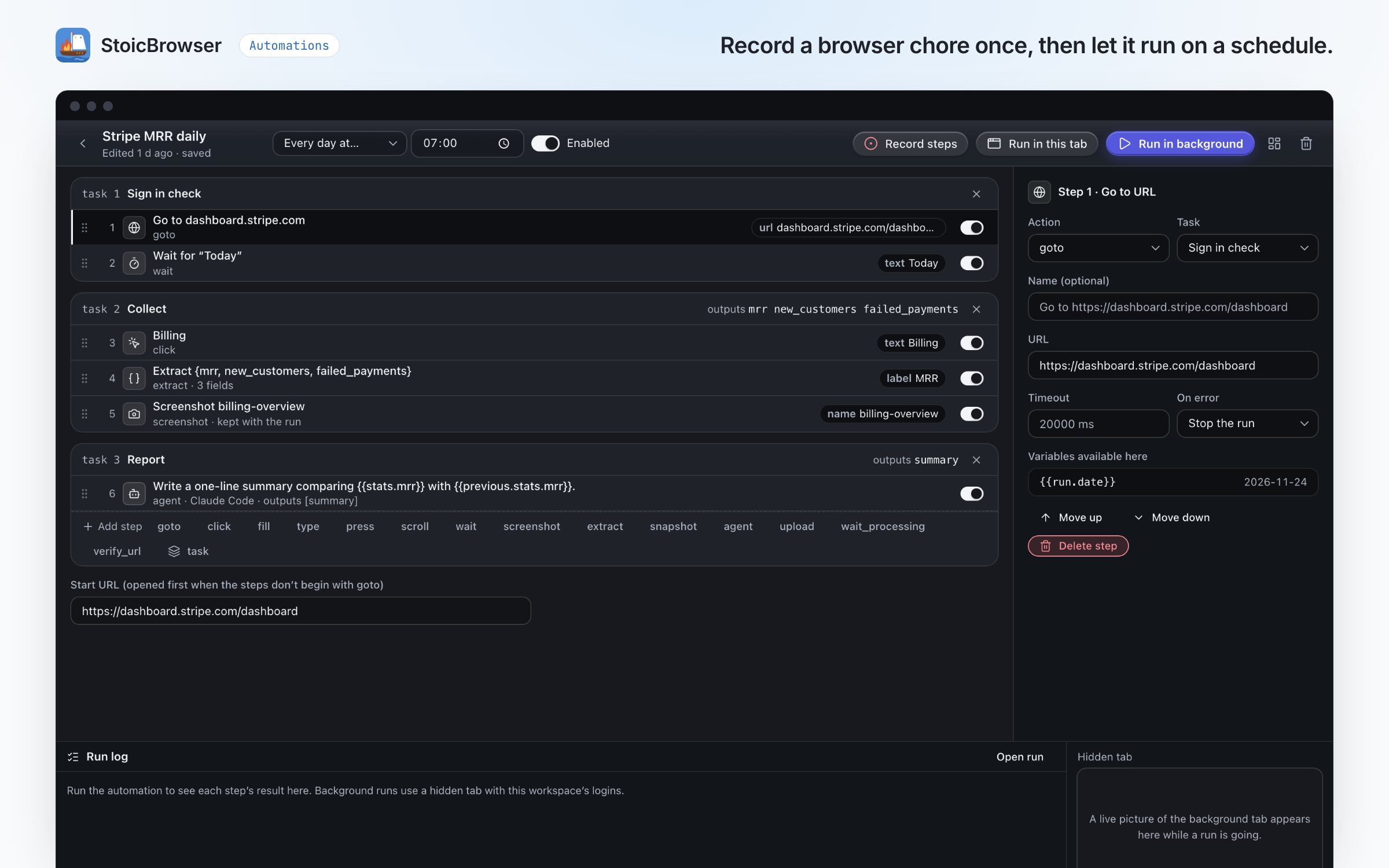
In Stoic Browser you record the task in a tab that already has the product's logins. Each click, field and page becomes a step you can edit, and the automation runs by hand or on a schedule in a hidden window.
14 step types, from Go to URL and Click to Extract data, Upload file and Ask agent, which hands a fuzzy step to a coding agent such as Claude Code.
Schedules: every 15 minutes, every hour, every 6 hours, once a day, or every day or weekdays at a set time.
Runs use the workspace's sign-ins in a hidden window, so Stoic Browser must be open or running headless on that computer.
Values you extract can be reused in later steps as {{variables}}, and numbers become metrics you can put alerts on.
Where: Automations → Record steps
Recording and runs are on Free with 1 saved automation; Pro saves as many as you like, from $29 once.
An automation in Stoic Browser 1.8.0, the real components with sample data.
It can fill a login form like any other form, but storing passwords in steps is risky. Running the task where you are already signed in avoids that. Stoic Browser never stores a typed password: it becomes a {{variable}}. A run that lands on a sign-in page fails at that step, with a screenshot.
What happens when the website changes?
Steps that target a CSS selector break first. Steps that target a visible label, like a button's text, survive most redesigns. When a run fails, look at the failed step, update its target and run it again.
Does my computer need to be on?
For any tool that runs in your own browser, yes. Stoic Browser runs schedules on your computer while the app is open, or with no window in headless mode. A run that was due while it was closed happens once at the next start.
Do I need to know CSS or JavaScript?
No. Recording and the step editor cover most chores. Selectors and the Ask agent step are there for the pages that need them.
Free for 2 workspaces. No account needed. macOS and Windows.