How do I extract data from a page behind a login on a schedule?
Updated 23 Nov 2026
The short answer
The extraction needs a browser that is already signed in, so the usual way is to save a session once and reuse it on every run. A script with a saved session, a cloud scraper with your cookies, or a browser that runs the extraction in your signed-in profile can all do it. Check the API first.
Your options
The service's API or export
Most dashboards offer an API, a CSV export or a scheduled email report with the same numbers.
Best when Best whenever it exists: it is faster, sanctioned and does not break when the page changes.
A script with a saved session
A browser automation library signs in once, saves the session to a file and reuses it to open the page and read values on each run.
Best when Best when you write code and can keep a session file secure.
A cloud scraper
Cloud tools run the extraction on their servers on a timer, using cookies or a recorded login you hand them.
Best when Best when the job must run while your computer is off and you are comfortable sharing the session.
A browser that extracts on a schedule
Some browsers save an extraction from the signed-in page and repeat it on a timer in a hidden window, so your login never leaves your computer.
Best when Best when the session should stay on your machine.
Do it with Playwright and a saved session
This needs Node.js and the Playwright library.
Save a signed-in session. Open the site through Playwright's code generator, sign in by hand and close the window. The cookies and storage are saved to a file.
Handle an expired session. Sessions expire. When the page shows a login form instead of the value, have the script report it so you can sign in again and save a fresh file.
Keep the session file private. The file signs in as you. Do not commit it to a repository or copy it to shared machines.
The same job in Stoic Browser
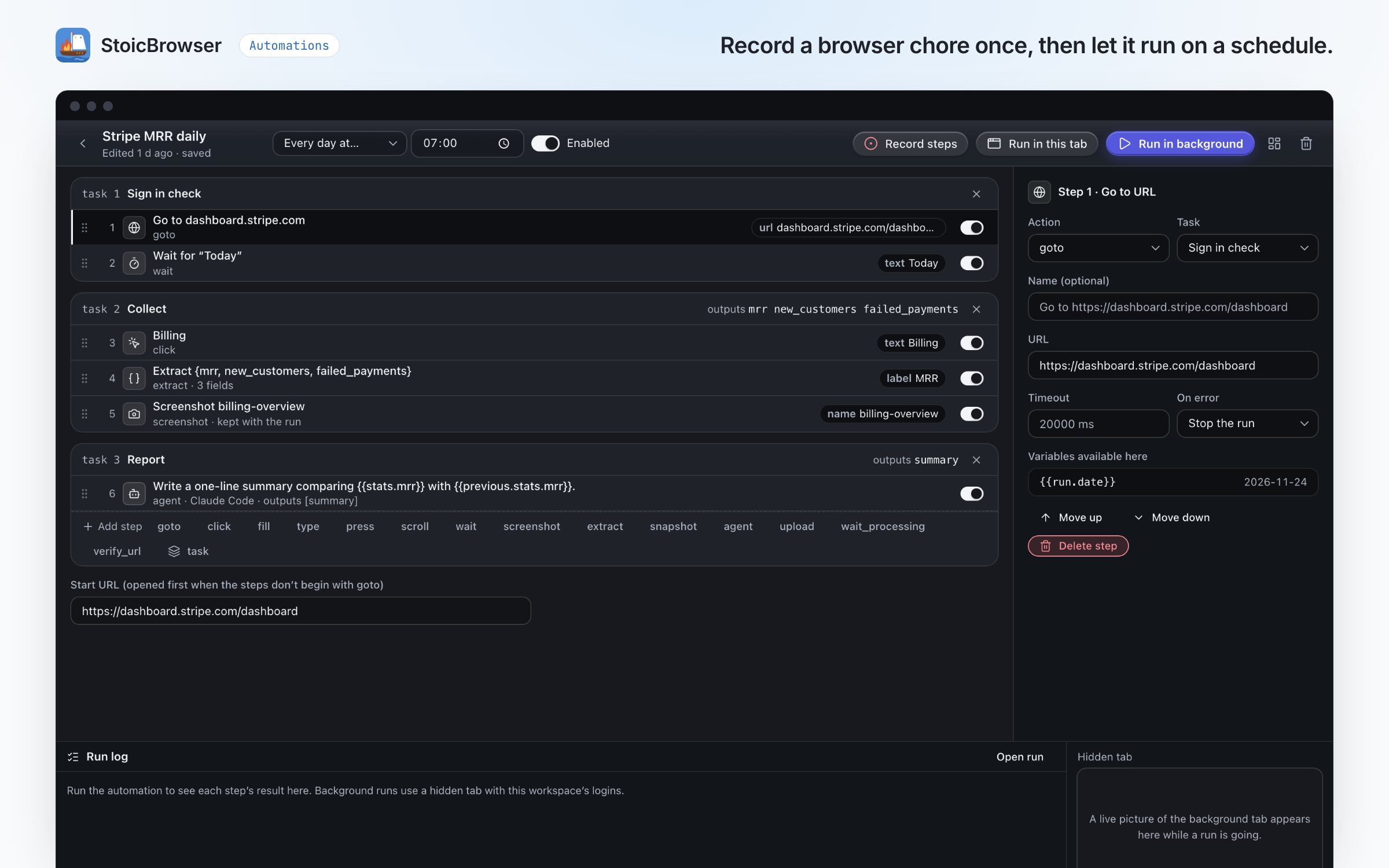
In Stoic Browser the page is already signed in, in the workspace for that product. Open Crawl Mode, click the table or number and save it with a schedule. Each run loads the page in a hidden window with the workspace's sign-ins.
Five data types: table, list or cards, metric, key-value and text, with a test run of the data before you save.
Schedules every 15 minutes, every hour, every 6 hours or every 24 hours, or a custom cron.
Jobs run locally while Stoic Browser is open, so cookies and passwords never go to a cloud service.
For a number you want alerts on, record an automation with an Extract data step instead: its values become metrics with alert rules.
Where: ⋯ More → Crawl mode (Cmd+Shift+E or Ctrl+Shift+E)
Free includes 1 monitored source and 1 saved automation; Pro has no cap, from $29 once.
An automation in Stoic Browser 1.8.0, the real components with sample data.
Check the service's terms first, and prefer its API or export where one exists. Extract only from accounts you own or are allowed to use, keep the interval modest, and do not share what you collect in ways the terms forbid.
What if the site asks me to sign in again?
A saved session expires sooner or later. A run then sees a login page instead of the data and should stop and tell you. Sign in again in the same browser profile and the next run works.
Can it handle two-factor sign-in?
Not by itself, and it should not try. Sign in by hand once, including the second factor, and let the scheduled runs reuse that session until it expires.
Free for 2 workspaces. No account needed. macOS and Windows.