Blog· 7 min read
Take video calls and share your screen, on your terms
Stoic Browser 0.5.0 asks before a site uses your camera, microphone, screen or location, opens a picker for screen sharing, and keeps each space's answers separate.
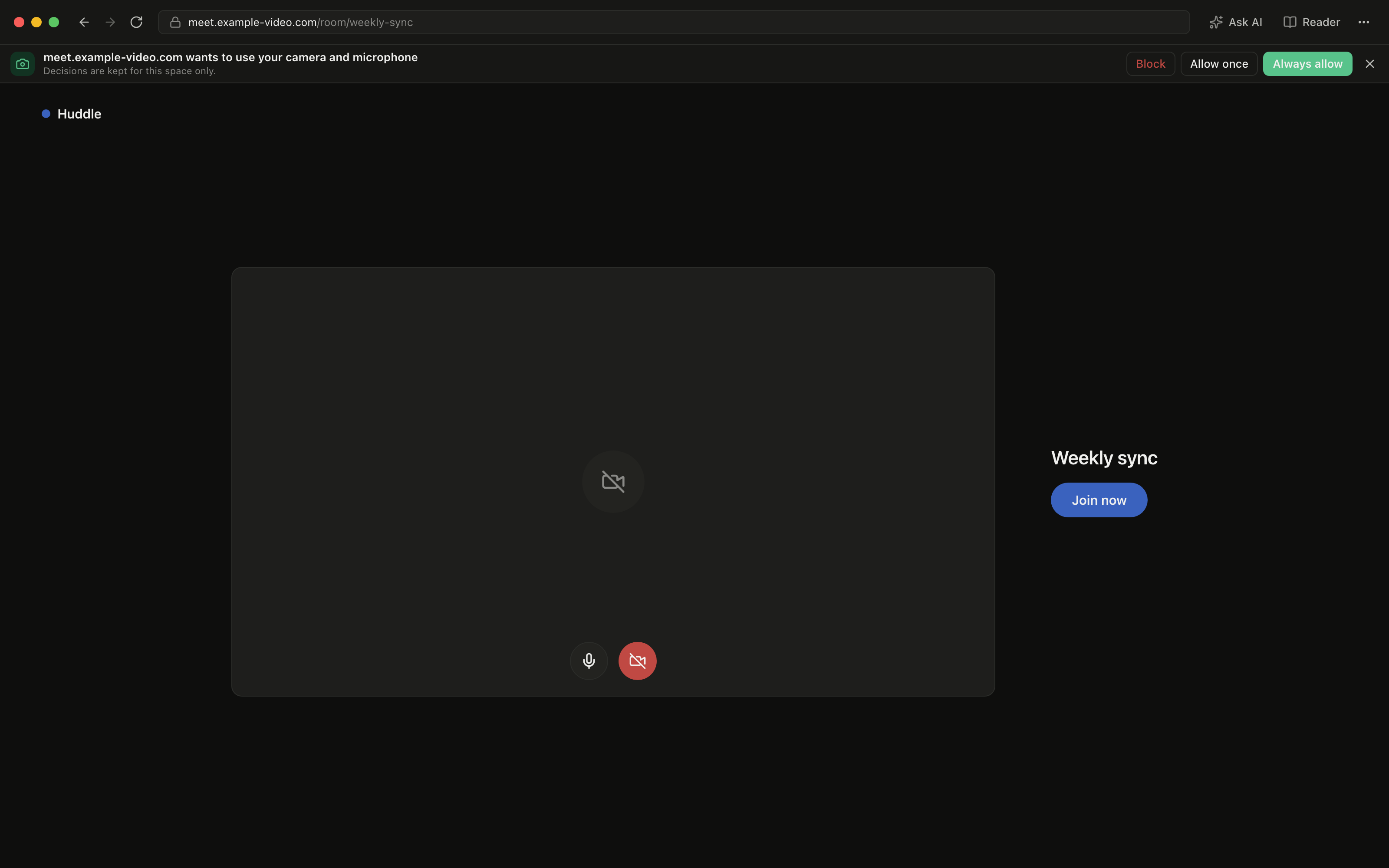
You open a meeting link in Stoic Browser on your Mac, press Join, and the camera preview stays black. The call app tells you to "check your browser permissions", but there was nothing to check: the browser had never asked macOS for the camera or the microphone, so every call started blind and mute. Screen sharing was worse. There was no picker to choose a screen from, so the Present button did nothing, and you ended up joining the same call from another browser just to show a slide.
On Windows and Linux the problem ran the other way. Nothing asked you anything, and there was no list of what any site had been given. A browser that lets pages reach your camera, your location or your clipboard without asking is not one you want to keep signed in to the accounts you run. You want to be asked, once, by the site that wants it, and you want the answer to stay where you gave it.
What changed
Stoic Browser 0.5.0 asks before a page uses your location, camera, microphone, screen, notifications and a handful of other sensitive features. Now you can take video calls and share your screen in Stoic Browser, and decide for each site, in each space, what it may use.
Every answer you save can be reviewed, changed or forgotten later in Settings → Site permissions.
How it works in practice
A bar above the page, not a pop-up over it
When a page asks for something, a bar opens above that page. It names the site and what it wants: "meet.example-video.com wants to use your camera and microphone". Under that it reminds you that decisions are kept for this space only. The page stays visible underneath, so you can see what you are about to say yes to.
You get three choices:
- Block turns the site down and remembers it, so it does not ask again in this space.
- Allow once lets the site use it now without saving anything. The next visit asks again.
- Always allow saves the answer, so the next call starts without the bar.
If you are not ready to decide, press Esc or the × at the end of the bar. That turns down this one request and saves nothing, so the site can ask again later. A bar you ignore closes by itself when you leave the page, and a request left unanswered for ten minutes is turned down.
The same bar covers location, camera, microphone, notifications, the clipboard, MIDI devices, mouse and keyboard lock, opening another app on your computer, and editing your files. Settings also lists idle detection and motion sensors.
Share a screen or a window from the call
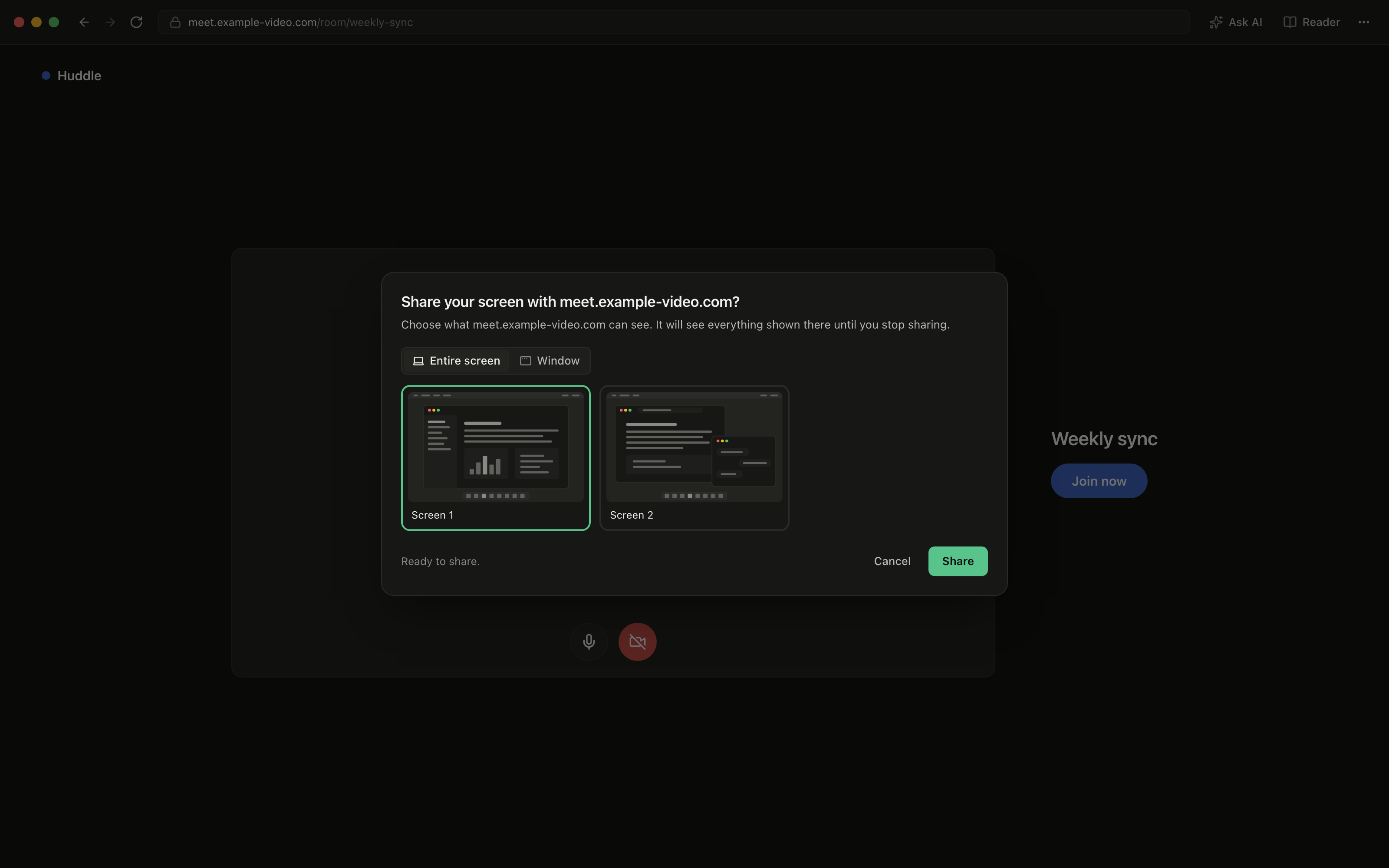
When a meeting site asks to share your screen, Stoic Browser opens a picker titled "Share your screen with" and the site's name. Switch between Entire screen and Window, pick one from the thumbnails, and press Share. Double-clicking a thumbnail shares it straight away. The picker spells out what you are agreeing to: the site will see everything shown there until you stop sharing.
On Windows, a site that also asks for audio gets your computer's sound along with the picture, so a video you play during a call comes through. On macOS and Linux the share is picture only, and the picker tells you that before you choose.
Each space keeps its own answers
A space in Stoic Browser is where you keep one product, one client or one side of your life. Site permissions follow that line. Allowing a meeting site in your work space does nothing to your personal space, and blocking a site's notifications in one space leaves the others to decide for themselves.
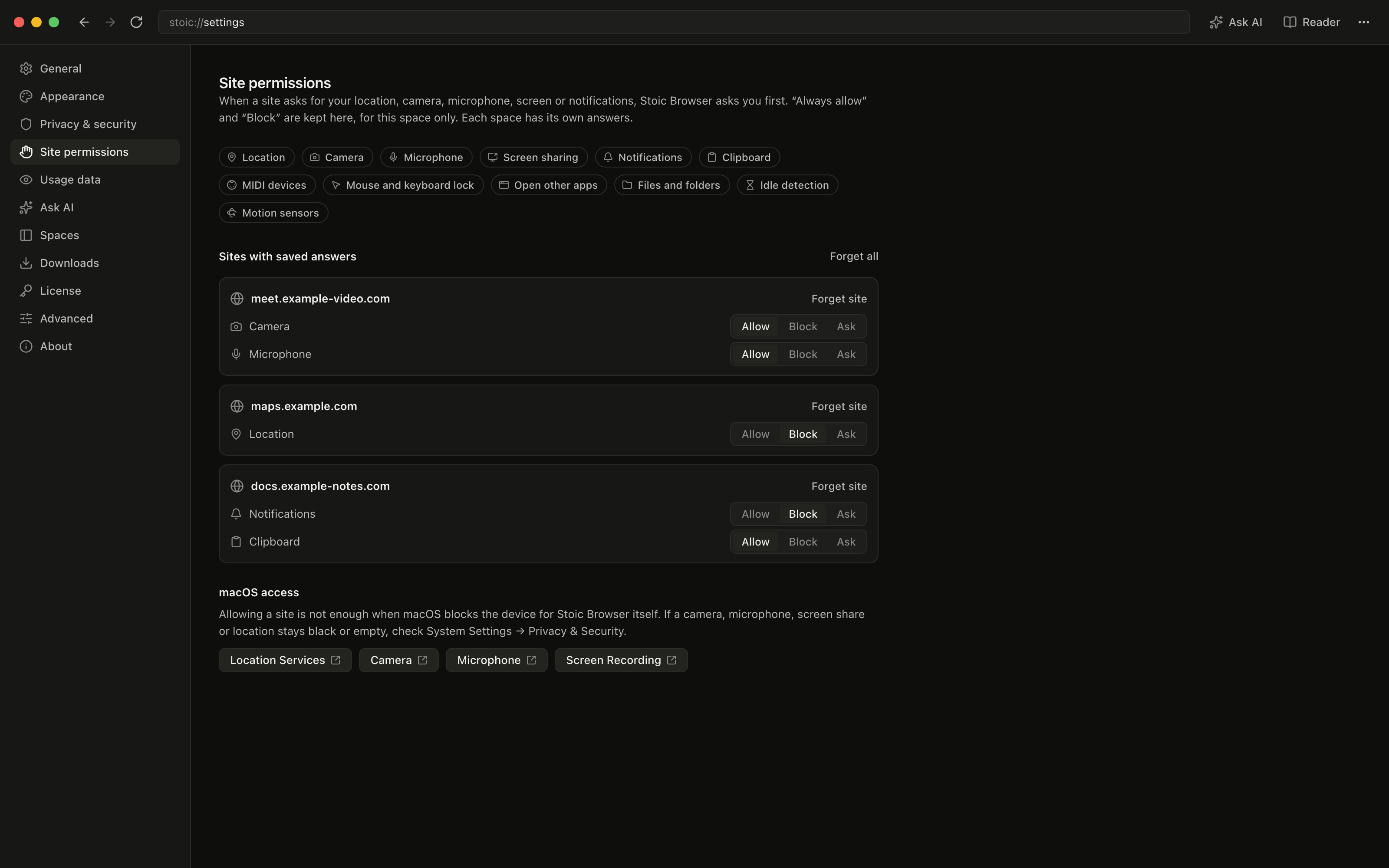
Settings → Site permissions shows the space you are in. At the top it lists everything a site can ask for. Under Sites with saved answers, each site you have allowed or blocked gets its own card, with one row per permission and a three-way switch: Allow, Block or Ask. Choose Ask to go back to being prompted. Forget site clears one site, and Forget all clears every saved answer in the space.
When macOS is the one saying no
Allowing a site is only half of it on a Mac. If macOS has not given Stoic Browser itself access to the camera, the microphone or screen recording, the site still gets a black square. Now a notice above the page says which device macOS is blocking, with an Open System Settings button that goes straight to the right Privacy & Security pane. The screen-share picker does the same when screen recording is off, instead of letting you share a black screen.
On macOS, Settings → Site permissions also has a macOS access section with buttons for Location Services, Camera, Microphone and Screen Recording, for when you would rather check all four at once.
Automations and agents never wait on a prompt
Scheduled automations and MCP access run in panes nobody is watching, so nobody could answer a prompt there. They do not try. A site in one of those panes gets the answer you already saved for it in that space, and anything you never answered is turned down. A nightly run cannot hang on an "Allow camera?" bar, and an agent cannot grant itself something you never said yes to.
Before vs After
| Before 0.5.0 | With 0.5.0 | |
|---|---|---|
| Joining a video call on a Mac | Black camera and no microphone, so you joined from another browser | A bar asks once, and you choose Block, Allow once or Always allow |
| Sharing your screen | No picker, so the site's share button did nothing | A picker for a whole screen or a single window, with sound on Windows |
| Being asked at all | Nothing asked, and nothing showed what a site had | Every sensitive request names the site and what it wants |
| Keeping work and personal apart | One behaviour for every site in every space | Each space keeps its own answers |
| Changing your mind | No list to change | Allow, Block or Ask per site and permission, Forget site, Forget all |
| macOS blocking the device | A black preview and no explanation | A notice naming the device, with a button to the right System Settings pane |
| Automations and MCP | No rule for unattended panes | Only saved answers apply, the rest is turned down |
Who benefits most
Founders who run calls from the browser they work in. Customer calls, demos and stand-ups happen in the same space as the dashboards you talk about, so you can share the exact tab instead of starting the call somewhere else.
People who keep clients or products in separate spaces. A meeting tool you trust for one client does not get your camera in another client's space unless you allow it there too.
Anyone running agents and automations. Unattended runs follow the answers you saved and refuse the rest, so a permission request can neither block a schedule nor slip through without you.
Also in this release
Cursor Agent runs reliably in chat again. It no longer fails with "a value is required for '--single <PROMPT>'" when Grok Build is also installed. On Windows your prompt now reaches it exactly as typed, quotes and backslashes included. Its tool calls show the tool's name and whether it worked, and its cached tokens now count in usage. On Windows, the card for a coding CLI you have not installed shows the Windows install command and no longer says "on this Mac".
Try it
Update Stoic Browser to 0.5.0 from Settings → About, or download it for macOS, Windows or Linux. Open the meeting link you have been opening somewhere else, answer the bar once, and the call happens in the same space as the rest of your work.