Blog· 6 min read
Chrome extensions in the workspaces you choose, and shortcuts you set
Stoic Browser 1.10.0 runs Chrome extensions only in the workspaces you pick, on Windows, and lets you change the keys for common actions like the left panel and Ask AI.
You keep each product in its own workspace so its logins and cookies never mix. Then you need your password manager in one of them, an ad blocker while you research competitors, and a JSON viewer while you poke at your own API. Until now the choice was to do without, or to open those pages in another browser and lose everything the workspace knew about you.
Your hands had the same problem. The shortcuts were fixed, so if Ctrl+B or Ctrl+J already meant something to you from another app, you either relearned them or reached for the mouse.
What changed
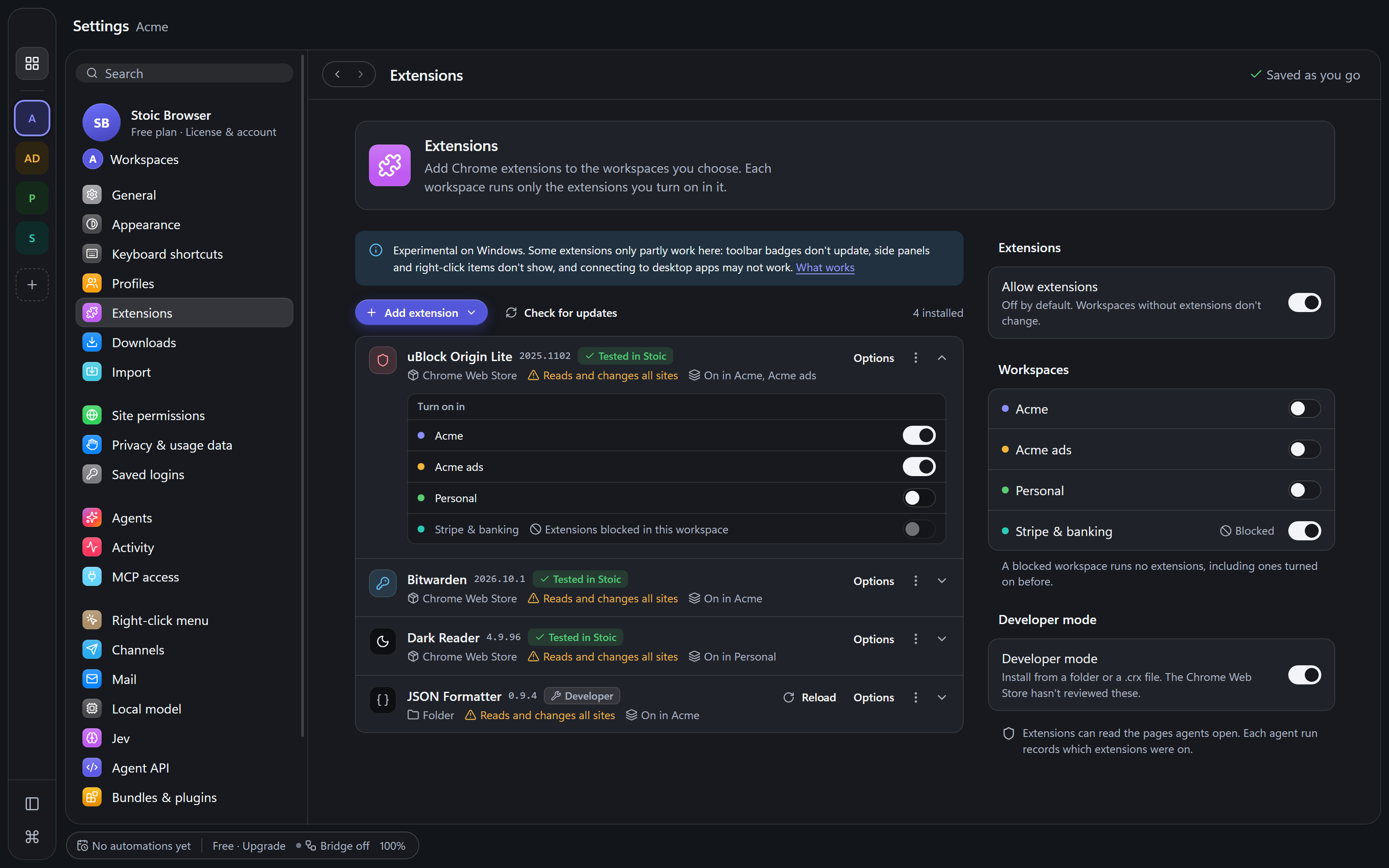
Stoic Browser 1.10.0 runs Chrome extensions in the workspaces you choose, on Windows, as an experimental option. Each workspace runs only the extensions you switch on in it, so your banking workspace can stay free of them while your research workspace blocks ads. And a new Keyboard shortcuts page lets you change the keys for common actions, like showing the left panel and opening Ask AI.
Nothing changes until you turn it on. Allow extensions in Settings → Extensions starts off, and a workspace with no extension switched on works exactly as before.
How it works in practice
Add an extension
There are two ways in. In Settings → Extensions, choose Add extension and paste a Chrome Web Store link. Or just browse the store: when you open an extension's page, a bar above it asks "Add Dark Reader to Stoic Browser?" with an Add to Stoic Browser button. With Developer mode on, you can also add one from a folder or a .crx file, for extensions you build yourself.
Stoic Browser downloads the package and checks its signature before anything runs. Then it shows you what the extension can do, in plain words rather than permission names: "Read and change everything on every site, in the workspaces you turn it on in", "Read your browsing history", "Store data on this computer". Below that, it asks which workspaces may run it. The workspace you are in is ticked; the others are up to you.
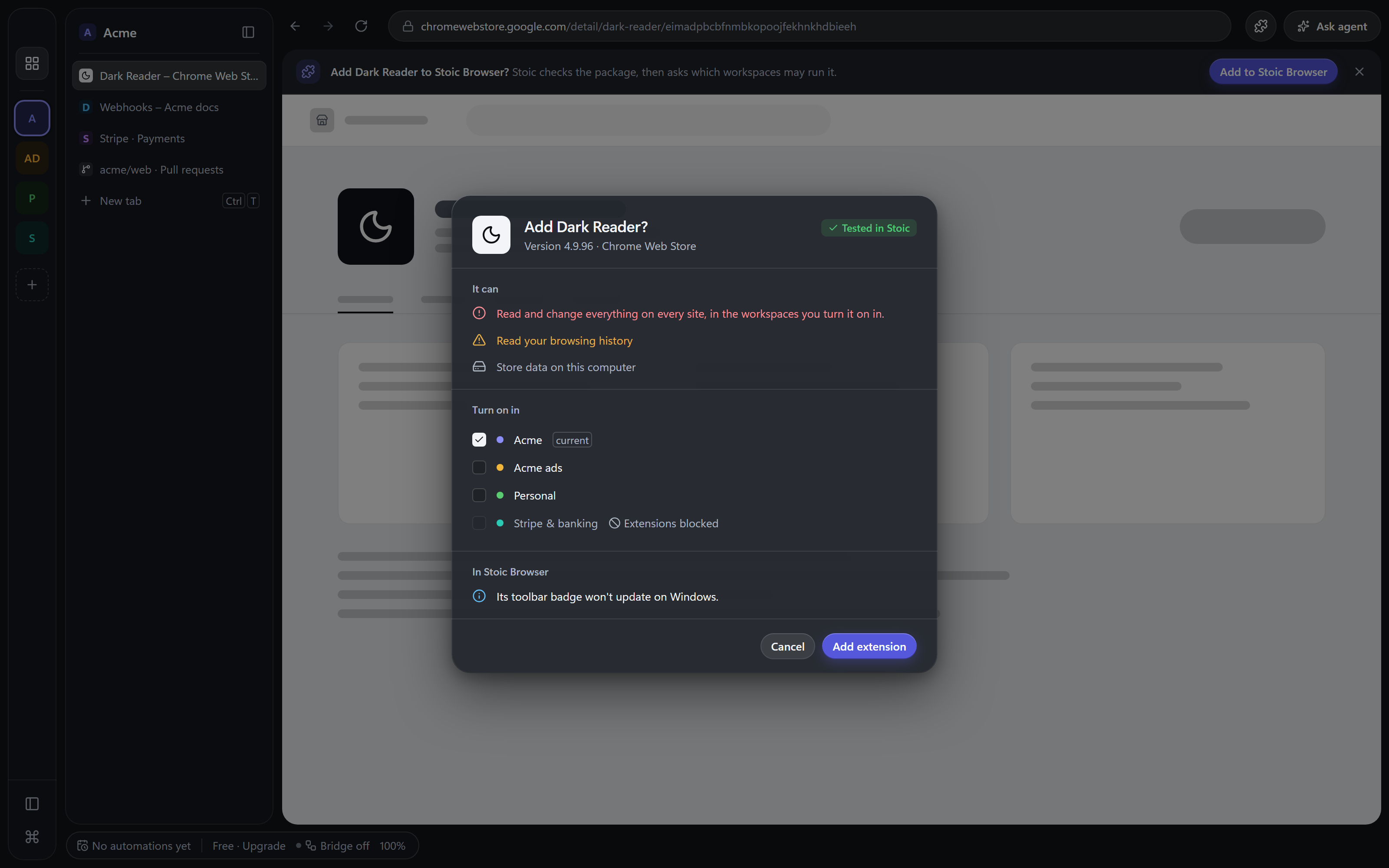
The dialog also tells you what won't work here before you install. For Dark Reader that is one line: "Its toolbar badge won't update on Windows."
Choose where each one runs
Every extension in the list says where it is on: "On in Acme, Acme ads". Open its row and a switch per workspace turns it on or off. A workspace's own Block extensions switch overrides all of them, so a workspace you keep clean stays clean even if you later switch an extension on everywhere else.
That matters more here than in an ordinary browser, because agents work in these workspaces too. An extension can read the pages an agent opens, so each agent run records which extensions were on. If your password manager should never sit next to an agent, keep it out of the workspaces your agents use.
Use it from the toolbar
The puzzle button in the toolbar lists the extensions on in the workspace you are in. Click one to open its popup. Pin the ones you use every day and they get their own button. Options pages open as ordinary tabs, and Check for updates in Settings keeps store extensions current.
Four extensions carry a "Tested in Stoic" mark because their main job works here: uBlock Origin Lite, Dark Reader, JSON Formatter and Bitwarden. Others load and run, but some parts of Chrome's extension system have nowhere to show yet: badges don't update, and side panels, an extension's right-click items and its keyboard shortcuts don't appear. The What works link on the page lists both sides.
On macOS, extensions will need macOS 15.4 or later and are not available yet.
Set your own shortcuts
Settings → Keyboard shortcuts lists the common actions with their keys, grouped into General, Tabs, Page, Split view, Agent chat and Tools. Click a shortcut, press the keys you want, and it saves. Backspace removes a shortcut, and a reset button brings back the default.
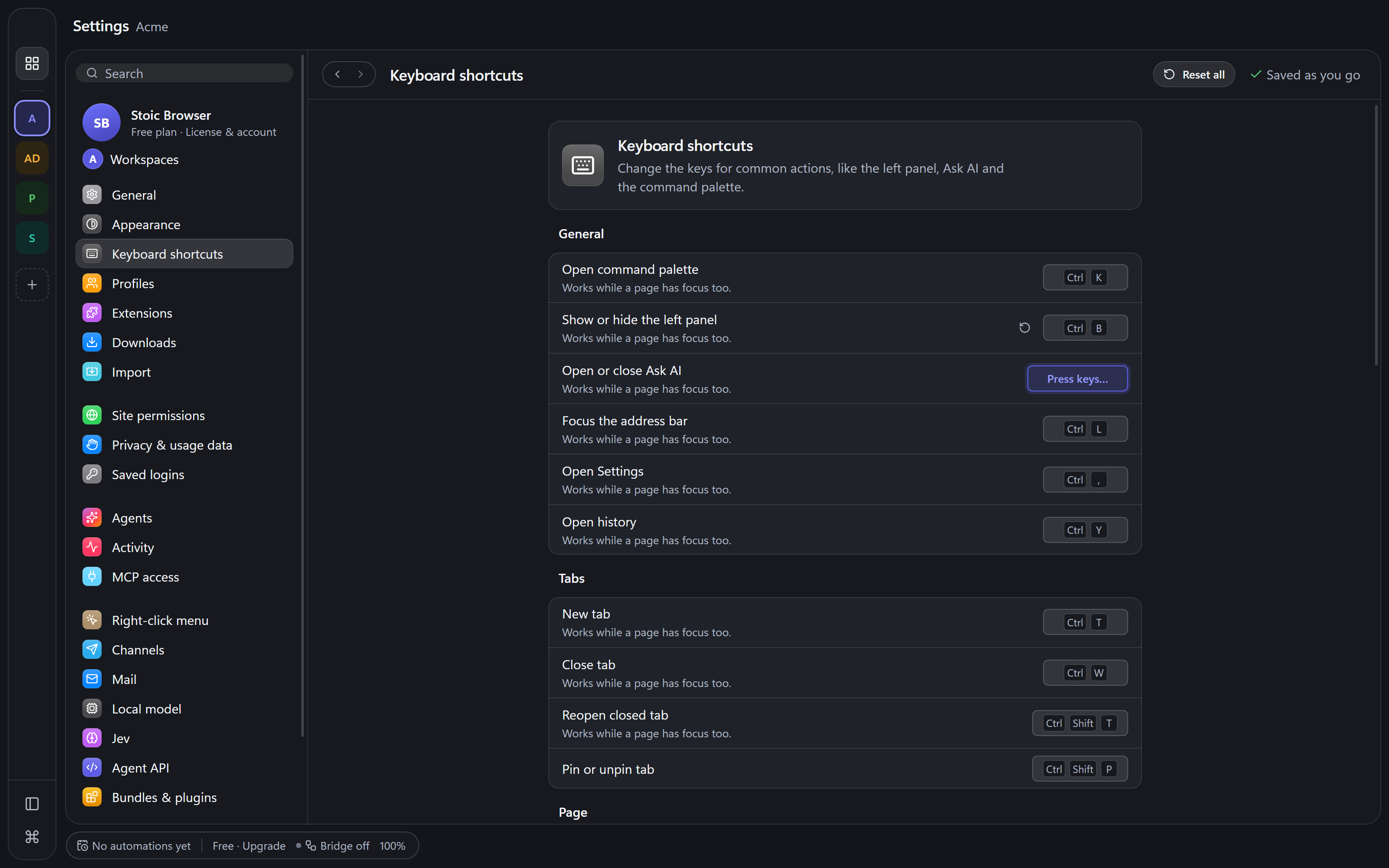
If the keys you press already belong to another action, they move to the new one and the page tells you which action lost its shortcut, so you never end up with two actions fighting over the same keys. Menus, tooltips and the command palette all show the keys you set.
Two shortcuts are new. Ctrl+Shift+B (⌘⇧B on macOS) shows or hides the left panel, for when you want the whole window for a page. Ctrl+J (⌘J) opens or closes Ask AI, and now works even while a web page has the focus. Most of the General and Tabs shortcuts work while you are typing in a page, too; the page marks the ones that do.
For the agents: more work in fewer calls
MCP clients connected to Stoic Browser get three changes that make long jobs cheaper:
- task_create opens an offscreen page of its own in a workspace. An agent can drive up to six of them at the same time, for example checking ten sites in parallel instead of one after another, and none of them touches the tab you are using.
- browser_run_steps runs a whole browser task in one call (go to a page, type, press keys, click, check the address, read some text) and answers with one short result. Each step is still checked against the connection's tools and allowed sites, as if it had been sent on its own.
- Answers are much shorter. A failed call no longer returns the whole page, and every browser tool can return only the address and title, or only what changed since the last call.
MCP access also stops acting on a tab you are using. If an agent works in a visible tab and you navigate it to your own page, the agent's next call is refused instead of acting on your page, and it carries on in a new tab of its own.
Before vs after
| Task | Before 1.10.0 | With 1.10.0 |
|---|---|---|
| Use your password manager in one workspace | Open the site in another browser, without the workspace's logins | Add Bitwarden and switch it on in that workspace only |
| Block ads while researching | Put up with them, or leave Stoic Browser | uBlock Origin Lite on in the research workspace |
| Keep a workspace free of extensions | Not a question, there were none | Block extensions switch on that workspace |
| Hide the sidebar for a wide page | Mouse | Ctrl+Shift+B, or keys of your choice |
| Open Ask AI while a page has focus | Click back into the toolbar first | Ctrl+J from anywhere |
| An agent checking ten sites | Ten pages, one after another | Up to six offscreen tasks at once |
Try it
Update from the app, or download Stoic Browser 1.10.0 from stoicbrowser.com. On Windows, open Settings → Extensions, turn on Allow extensions, and add the one extension you missed most to the workspace that needs it. Then open Settings → Keyboard shortcuts and make the keys match your hands.