AnswersHow to

Answers

How do I move my Chrome profiles, passwords and cookies to another browser?

Updated 23 Nov 2026

The short answer

Use the new browser's import tool with Chrome closed: most bring over bookmarks, history and saved passwords, and some bring cookies so you stay signed in. With no importer, export passwords from Chrome's Password Manager as a CSV file and bookmarks as an HTML file. Chrome has no way to export cookies itself.

Your options

  1. The new browser's importer

    Edge, Firefox, Safari, Brave and others read Chrome's profile folder directly. What comes across depends on the browser and the operating system.

    Best when The browser you're moving to has one, which most do.

  2. Chrome's password export

    Chrome's Password Manager saves every login to a CSV file that most browsers and password managers can import.

    Best when The new browser has no importer, or you're moving to a password manager.

  3. Bookmark export

    Chrome's Bookmark manager exports an HTML file that every browser can import.

    Best when You only need your bookmarks.

  4. Chrome sync

    Signing in to Chrome carries bookmarks, passwords and history to Chrome on your other devices, not to other browsers.

    Best when You're moving to Chrome on another computer.

Export by hand from Chrome

  1. Export passwords. Open chrome://password-manager/settings, choose Export passwords and confirm with your computer's password. Chrome saves a CSV file.
  2. Export bookmarks. Open chrome://bookmarks, click the three-dot menu at the top right and choose Export bookmarks. Chrome saves an HTML file.
  3. Import into the new browser. In the other browser, find its import option, usually in Settings or the File menu, and pick the CSV for passwords and the HTML file for bookmarks.
  4. Delete the password file. The CSV holds every password in plain text. Once the import is done, delete it and empty the Trash or Recycle Bin.
  5. Sign back in. Without cookies, sites start signed out in the new browser. The imported passwords make signing back in quick.

The same job in Stoic Browser

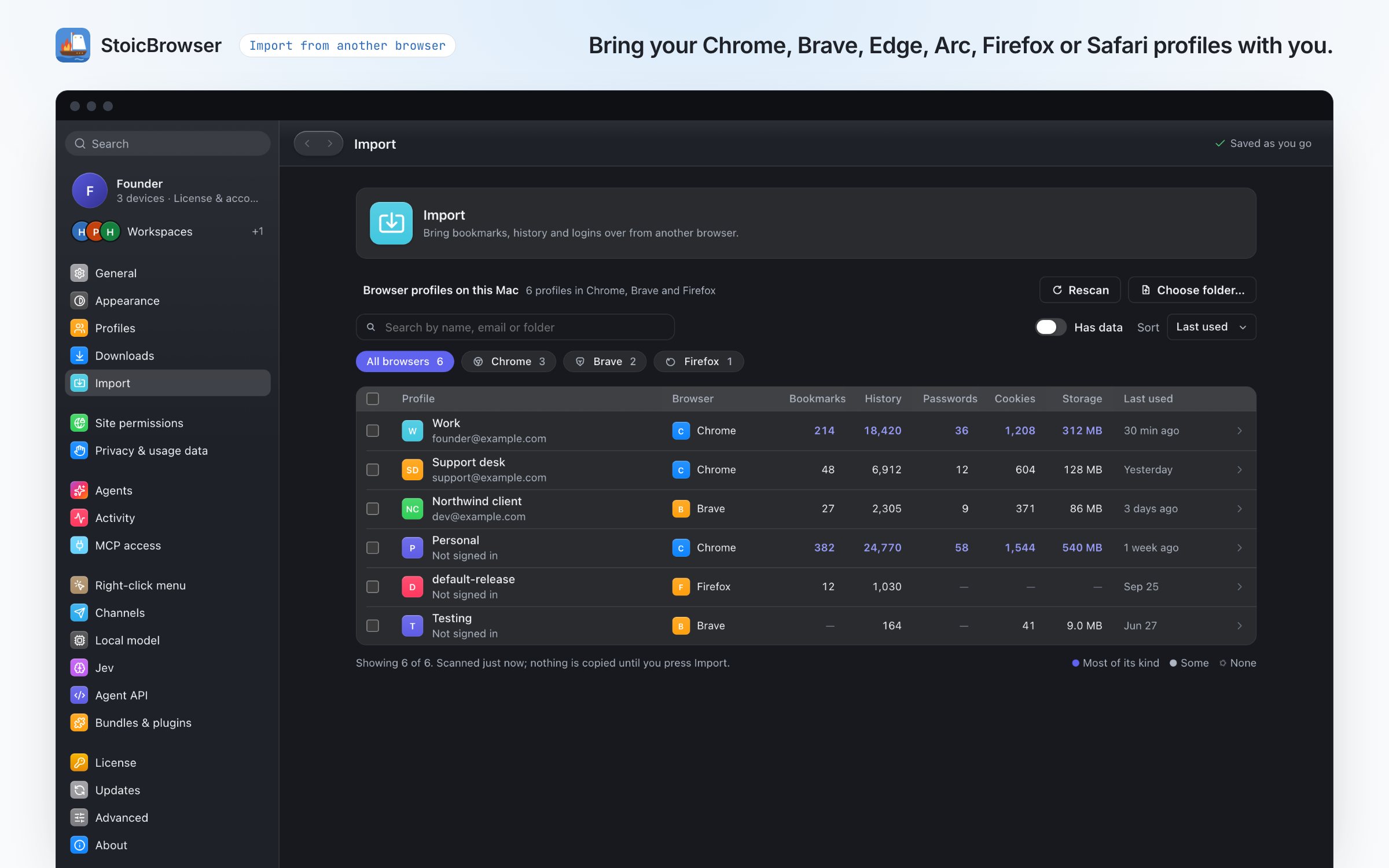
Stoic Browser reads browser profiles straight from disk in Settings → Import. Tick one profile, several or all, and by default each one lands in a new workspace of its own, so separate sign-ins stay separate.

  • It finds profiles from Chrome, Brave, Edge, Arc, Firefox and Safari, and shows what each one holds before you import it.
  • From Chrome, Brave, Edge and Arc it brings bookmarks, history, cookies, saved passwords and site storage, on macOS and Windows. On Windows, values Chrome locks with its app-bound encryption are skipped.
  • Safari's cookies and storage, and Firefox's site storage, are not imported.
  • Quit the other browser first, since it keeps its cookie database locked while open. Imported passwords go to the macOS Keychain or Windows Credential Manager and fill in on their sites.
Where: Settings → Import

Importing is on Free and Pro; Free includes 2 workspaces, and Pro has room for one per imported profile.

Settings → Import listing six Chrome, Brave and Firefox profiles in a table with counts of bookmarks, history, passwords, cookies and storage, filters by browser and a search field
Settings → Import in Stoic Browser 1.8.0, the real components with sample data.

Questions

Something missing? Write to hello@stoicsoft.com.

Can I export my Chrome cookies?

Chrome has no built-in way to. Cookies move only when another browser imports them from Chrome's profile folder, and some sites may still ask you to sign in again.

Why are some cookies or passwords missing after an import on Windows?

Recent versions of Chrome on Windows protect some data with app-bound encryption that only Chrome can read. Importers, Stoic Browser's included, skip those values, so sign in once on those sites.

Is it safe to export my passwords?

The export is a plain-text CSV with every password in it. Import it right away, delete it afterwards, and keep it out of cloud folders.

Free for 2 workspaces. No account needed. macOS and Windows.

Download Stoic Browser